Claude Code Setup Guide: CC Switch, Model Switching, DeepSeek Integration, and Skills Installation
This guide walks through a first-time setup flow for Claude Code and CC Switch, including how to get an API key, map models in Claude Code, switch models from the command line, add a DeepSeek provider in CC Switch, verify the setup, and manage Skills. It is especially useful for developers who want a practical way to manage multi-model Claude Code workflows without living in config files all day.
Who this guide is for
If you are just getting started with Claude Code and also want to make CC Switch part of the workflow, this guide gives you a clean path from “nothing is configured yet” to “the whole stack is usable.” It pulls together API keys, model switching, visual configuration, DeepSeek provider fallback, and Skills management in one place.
The big idea is simple: get Claude Code working first, then make model switching and skill management feel lightweight. Once that part is stable, it becomes much easier to expand the workflow later.
1. Get the API key first
The original article uses Volcengine Ark Coding Plan as the example. The path is straightforward: open the console, activate the service, go into the API key management area, and create a key.
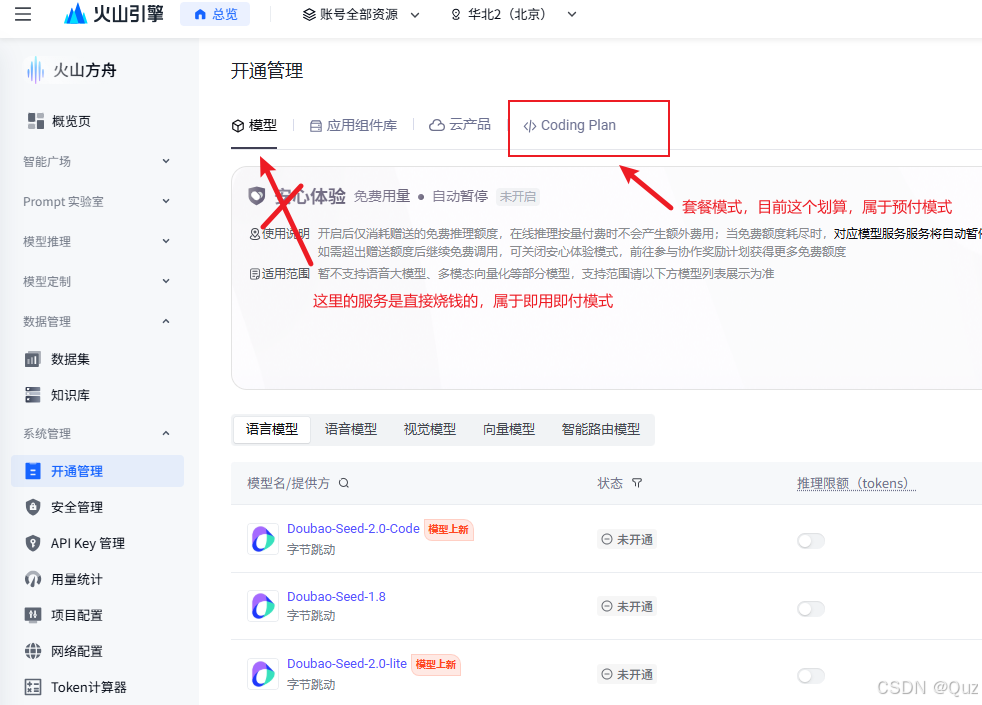
Open Coding Plan in Volcengine Ark
Start by opening the Coding Plan product page in the console. The real point here is not the screen itself, but the fact that every later configuration step depends on this key.
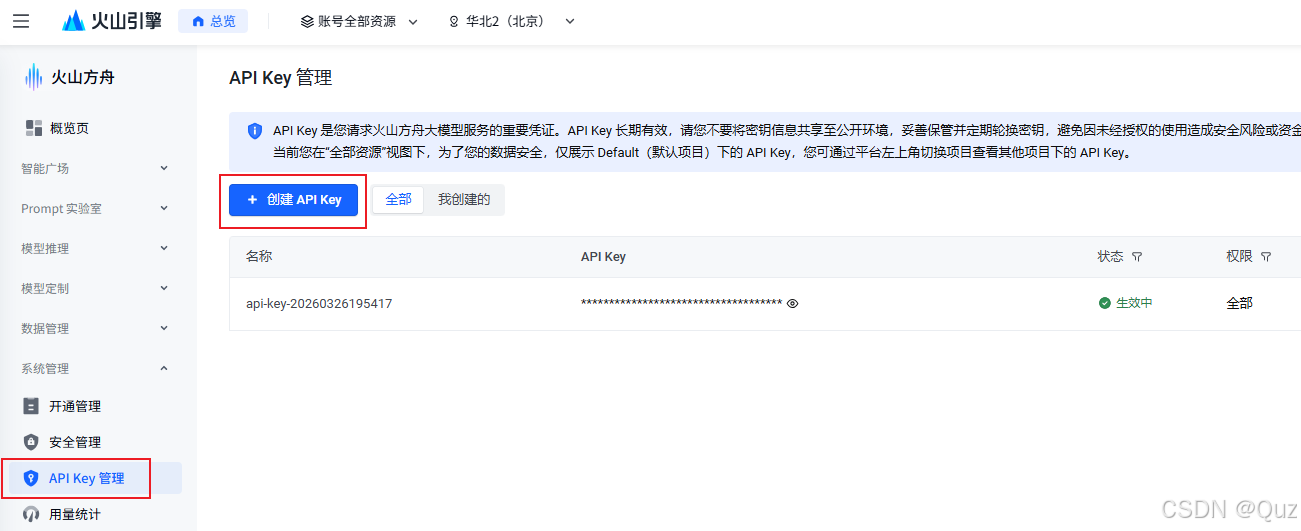
Create and copy the API key
Once the key is created, store it properly. The article also notes that MiniMax, GLM, Alibaba Bailian, and other platforms follow roughly the same pattern: open the console, find API key management, create a key, and move on to Claude Code configuration.
2. Manually configure models in Claude Code
This is the section that really decides how Claude Code behaves. The article uses two approaches: edit the config file, or switch models temporarily from the command line.
Method 1: edit settings.json
If you want a stable long-term setup, editing .claude/settings.json is still the cleanest option. The article uses the following Ark Coding Plan example:
{
"env": {
"ANTHROPIC_BASE_URL": "https://ark.cn-beijing.volces.com/api/coding",
"ANTHROPIC_AUTH_TOKEN": "paste the API key here",
"ANTHROPIC_DEFAULT_HAIKU_MODEL": "doubao-seed-2.0-lite",
"ANTHROPIC_DEFAULT_OPUS_MODEL": "glm-5.1",
"ANTHROPIC_DEFAULT_SONNET_MODEL": "doubao-seed-2.0-pro",
"ANTHROPIC_MODEL": "kimi-k2.5",
"ANTHROPIC_REASONING_MODEL": "deepseek-v3.2",
"API_TIMEOUT_MS": "600000",
"CLAUDE_CODE_DISABLE_NONESSENTIAL_TRAFFIC": "1"
}
}
The three fields that matter most are:
ANTHROPIC_BASE_URL for where requests go
ANTHROPIC_AUTH_TOKEN for how they authenticate
the default and reasoning model mappings for which models get picked in different situations
If you are following this pattern with Ark, keep in mind that model names should always be checked against the official docs. After you save the file, restart Claude Code and the model in ANTHROPIC_MODEL becomes the default.
Method 2: switch models from the command line
If you only want to test a model briefly, you do not need to edit the config file every time. The article gives two lighter options:
claude --model kimi-k2.5
or, while already running:
/model kimi-k2.5
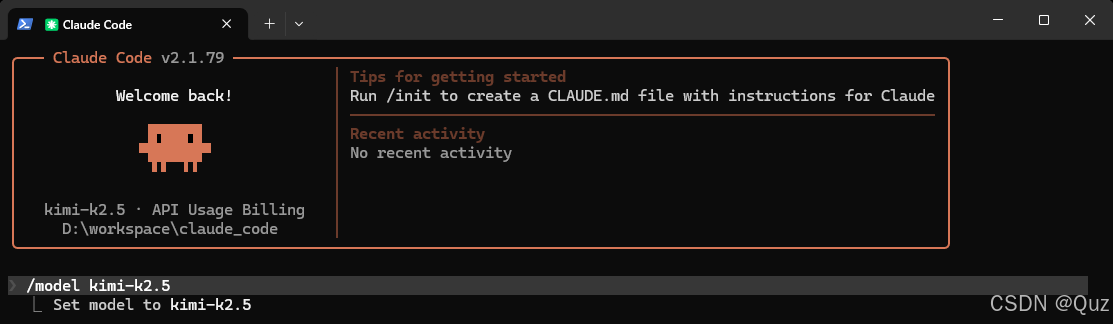
Switch models from the Claude Code command line
That makes the split pretty clean: persistent defaults go into the file, short-term experiments happen in the CLI.
3. Use CC Switch as the visual control panel
If you do not want to keep touching raw config files, CC Switch becomes very useful. It does not replace Claude Code; it simply makes provider and model management more visible.
Get the installer first
The article lists three realistic ways to do it:
1. download the latest release from GitHub
2. ask an AI tool such as Trae to help fetch it
3. run the downloaded executable
The practical takeaway is that CC Switch is a visual configuration layer. If JSON files are not your favorite place to live, this helps immediately.
Add models from the UI
The basic flow is: open CC Switch, enter the configuration area, switch into edit mode, add the models you want, and save.
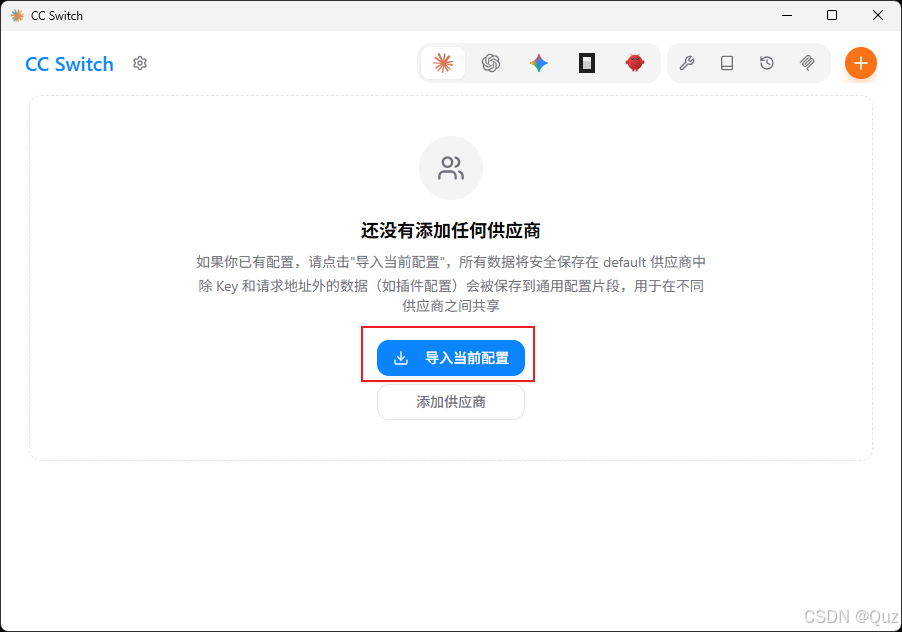
Open the main configuration entry in CC Switch
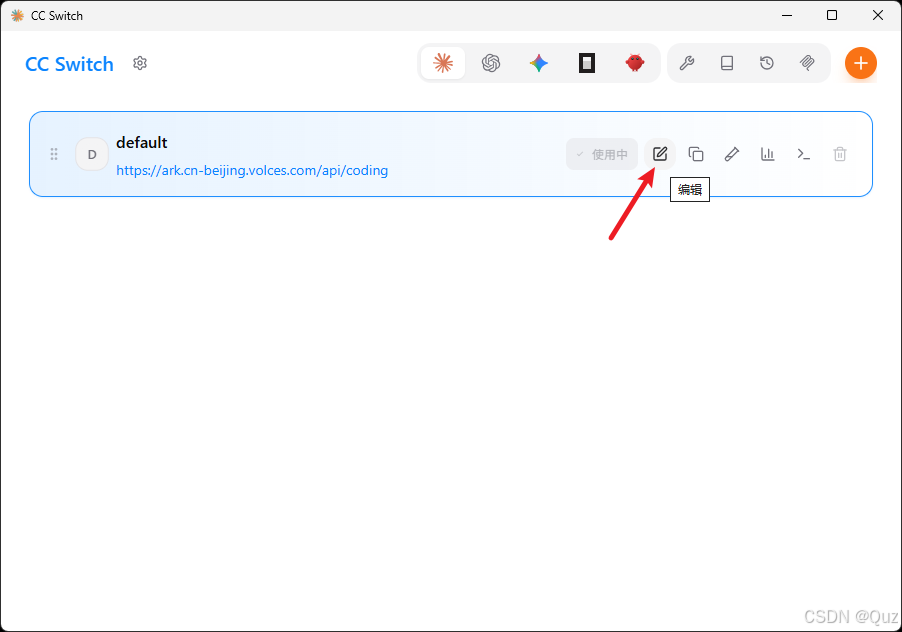
Enter edit mode in CC Switch
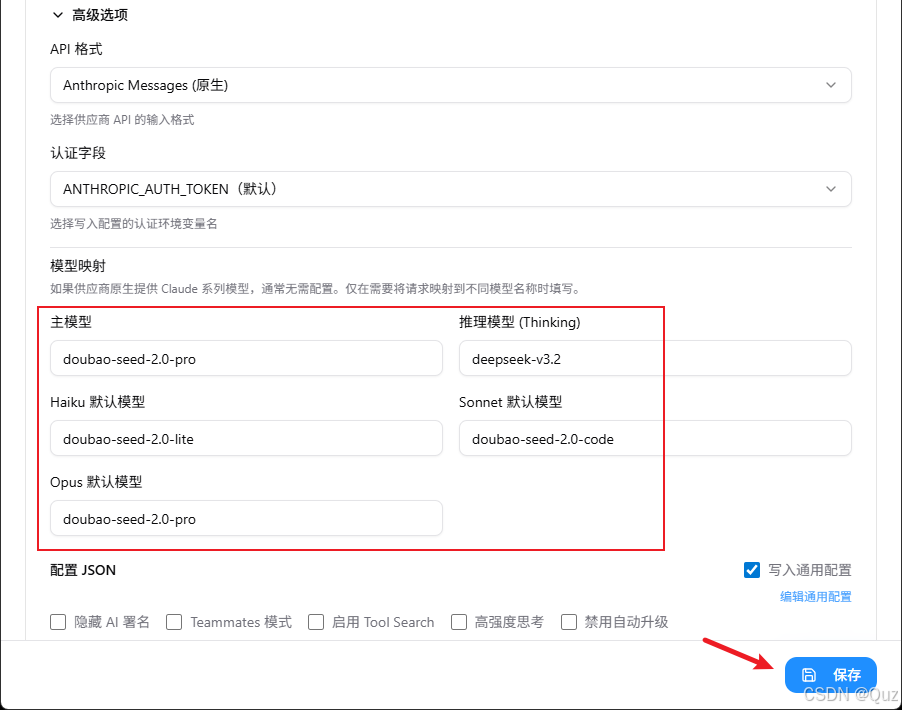
Add and save model entries in CC Switch
The value is not the clicking itself. The value is that your model settings stop being scattered across files and start living in one visible place.
Add DeepSeek as another provider
This is one of the most useful parts of the article. It points out a very common scenario: your Volcengine quota runs out, but you do not want to hand-edit another config file just to keep working. In that case, adding a DeepSeek provider inside CC Switch is the smoother path.
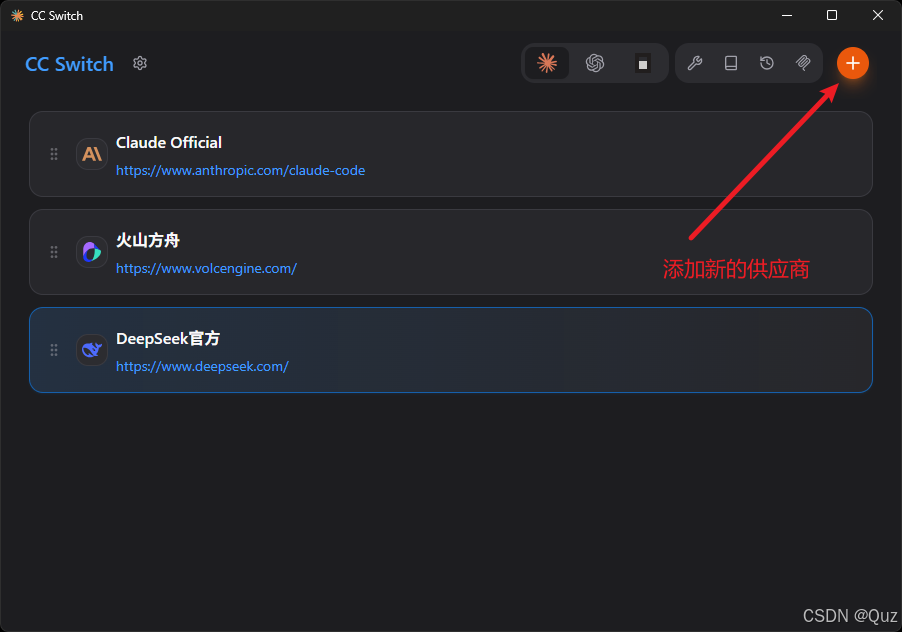
Add a new provider in CC Switch
Start from the provider button in the top-right corner.
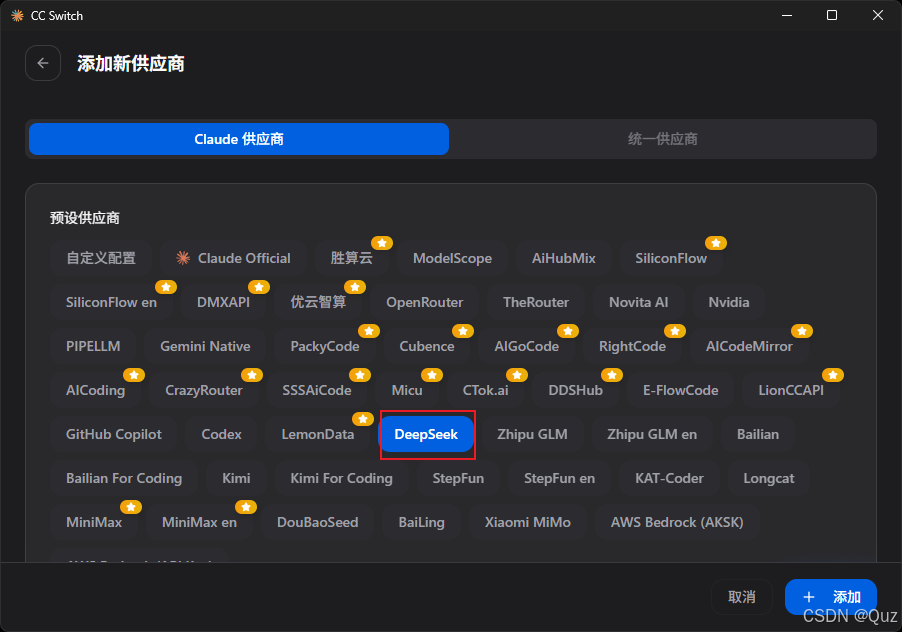
Choose the DeepSeek preset provider
Then choose the built-in DeepSeek preset.
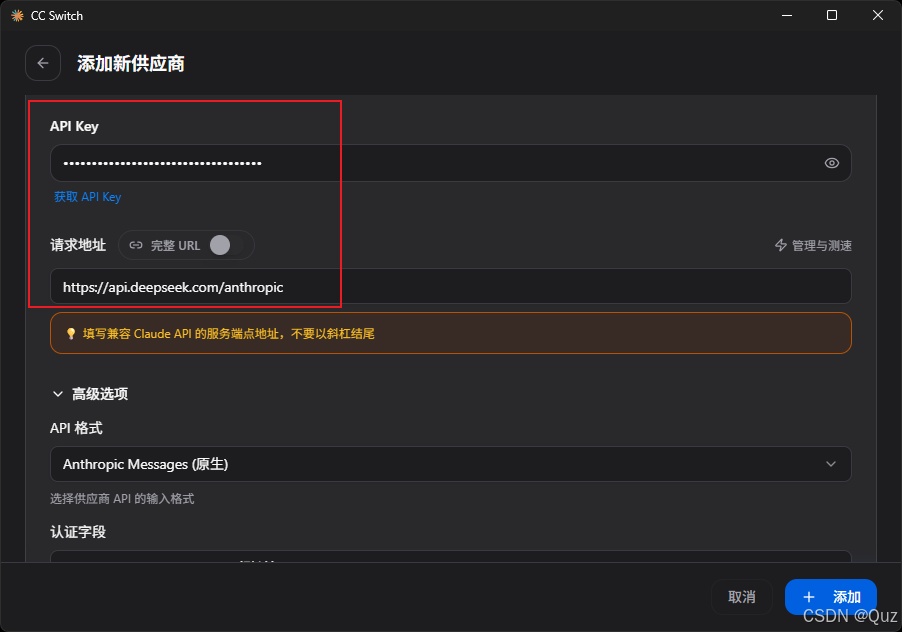
Fill in the DeepSeek endpoint and API key
Use https://api.deepseek.com/anthropic as the request URL and fill in the API key from the DeepSeek platform.
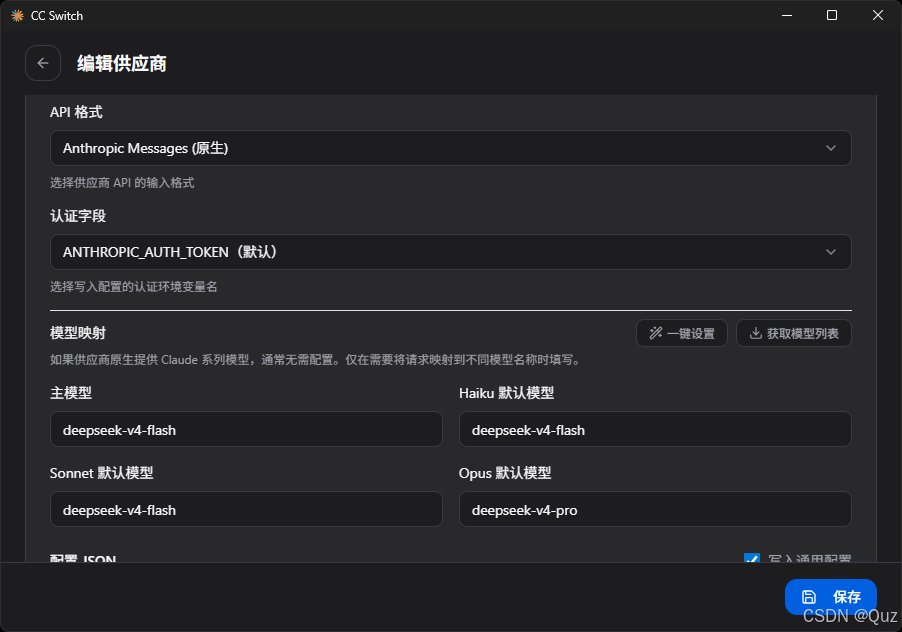
Configure the DeepSeek model list and save it
Configure the model list and save it.
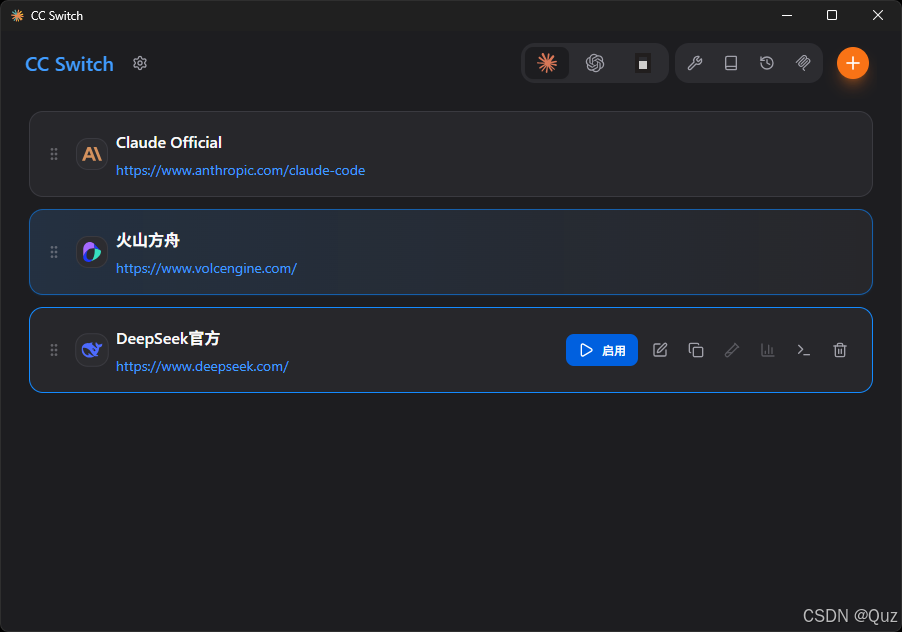
Enable the provider and switch traffic to it
Finally, enable the provider and switch over. The real win here is simple: you no longer need to bounce between multiple config files every time a provider changes.
4. How to verify that the setup works
The article keeps the verification step very practical:
1. open Claude Code
2. ask a simple question, such as “write a hello world program in Python”
3. if it answers normally, the basic path is probably working
4. test a few more requests to confirm model switching behaves as expected
That reflects a good habit: verify that the system works before polishing the configuration. A working setup is worth more than a beautiful but untested one.
5. CC Switch can also manage Skills
Beyond models, CC Switch can also help manage Skills, which makes it easier to keep the workflow in one place.
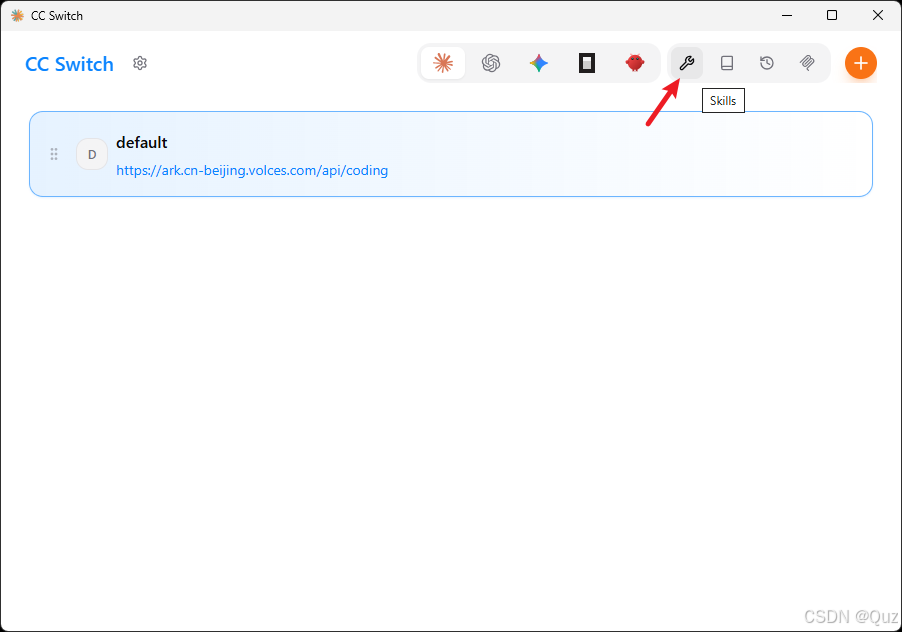
Open the Skills entry in CC Switch
Open the Skills entry and go into the management view.
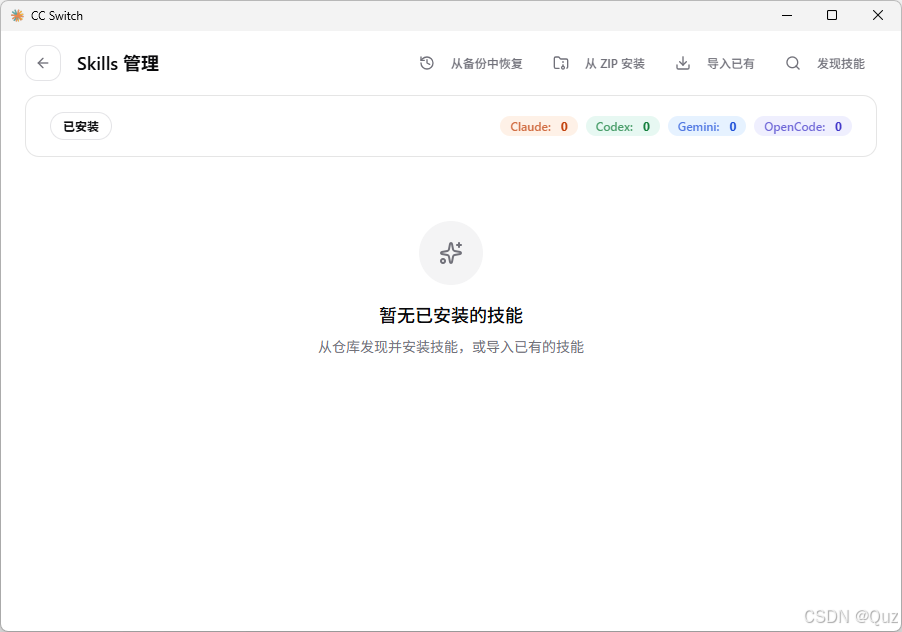
Manage installed skills from the Skills page
From there, you can install, remove, and organize them. For beginners building a Claude Code workflow, that is much easier than juggling loose folders by hand.
6. Three ways to add Skills in CC Switch
The article breaks this into three patterns, and the split is actually useful.
Method 1: import an existing skill
If someone already gave you a skill package, or you backed one up earlier, importing it is the fastest route. The author mentions ui-ux-pro-max and using-superpowers as examples they had already brought in.
Method 2: install from a zip
If the skill comes as a zip file, you can install it locally. The article includes a good practical warning here: inspect the code and confirm the source before installing random packages.
Method 3: discover skills
For most newcomers, the article clearly recommends discover skills first because it is the most direct and least confusing path.
The recommended starter list is:
ui-ux-pro-max
using-superpowers
writing-plans
executing-plans
brainstorming
subagent-driven-development
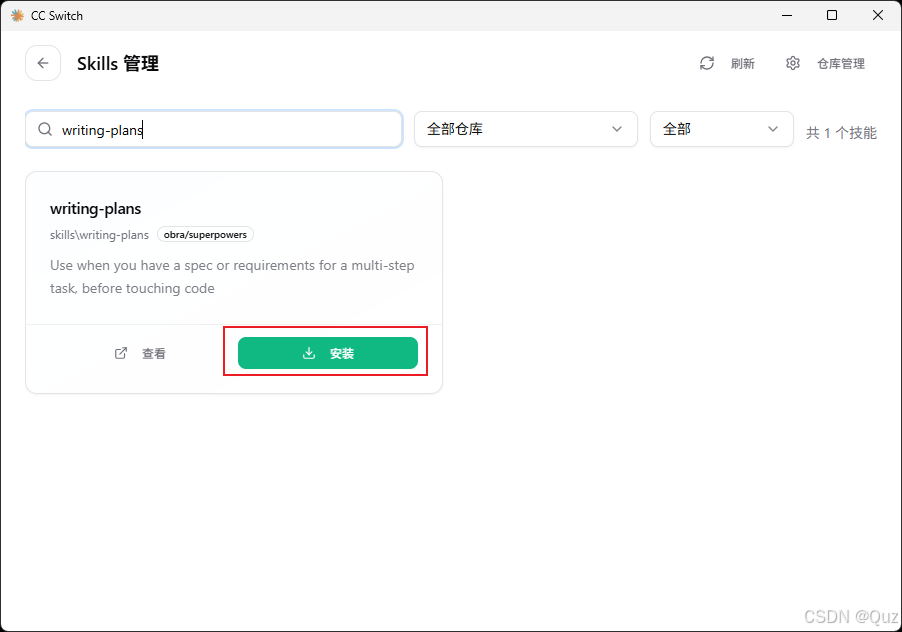
Discover and install skills from the library
The article also flags a real-world constraint: the built-in GitHub source in CC Switch is not always friendly to domestic network conditions in China. If the install flow is flaky, it may be easier to let another AI tool help search, explain, or install.
7. Which skills are worth installing first
The author’s frequently used skills roughly fall into a few groups:
UI and design work:ui-ux-pro-max
skill recommendation:using-superpowers
planning:writing-plans and executing-plans
idea expansion:brainstorming
parallel development:subagent-driven-development
If you are new to this, there is no need to install everything at once. Start with the skills you will use every week, then add more when the workflow proves it needs them.
8. Final reminder: do not install duplicates
The article ends with a very grounded reminder. Duplicate skills do not just waste space. They also make the workflow noisier and harder to reason about.
A simple cleanup approach is:
1. open the Skills management page in CC Switch
2. compare names and descriptions
3. keep the newer, more active, or more widely used one
4. search before installing anything new
In other words, more skills do not automatically mean a better workflow. A cleaner skill set usually wins.