Codex Desktop + DeepSeek API Setup Guide: Use Codex++ Pure API Mode Without a Codex Account
A practical setup guide for connecting Codex Desktop with DeepSeek through Codex++ pure API mode. Learn how to install Codex Desktop, configure Codex++ as an external launcher, add a DeepSeek provider, choose Chat Completions, handle API keys, avoid common Base URL and proxy errors, and understand how this workflow fits AI coding, SEO, GEO, showcase websites, and We0.ai growth workflows.
When developers try an AI coding assistant, the hardest part is often not whether the model can write code. The real friction is whether the tool starts, whether the model connects, whether the API returns reliably, and whether errors can be located quickly.
The original article describes a practical stack: Codex Desktop + Codex++ external launcher + DeepSeek pure API mode. The idea is not to modify the original Codex installation directly. Instead, Codex++ starts Codex through an external launcher and routes model calls to a custom API provider.
For domestic developers, this is attractive because it keeps the familiar Codex desktop experience while making the model provider configurable. The real problem it solves is not “which model is stronger,” but “can I plug an AI coding assistant into my own development environment?”
One caveat matters: any third-party launcher or injection tool requires your own security, terms, and update-risk review. It can be useful for personal testing, education, and customization. For team production, official plugins, CLIs, SDKs, or enterprise-supported integrations are safer choices.
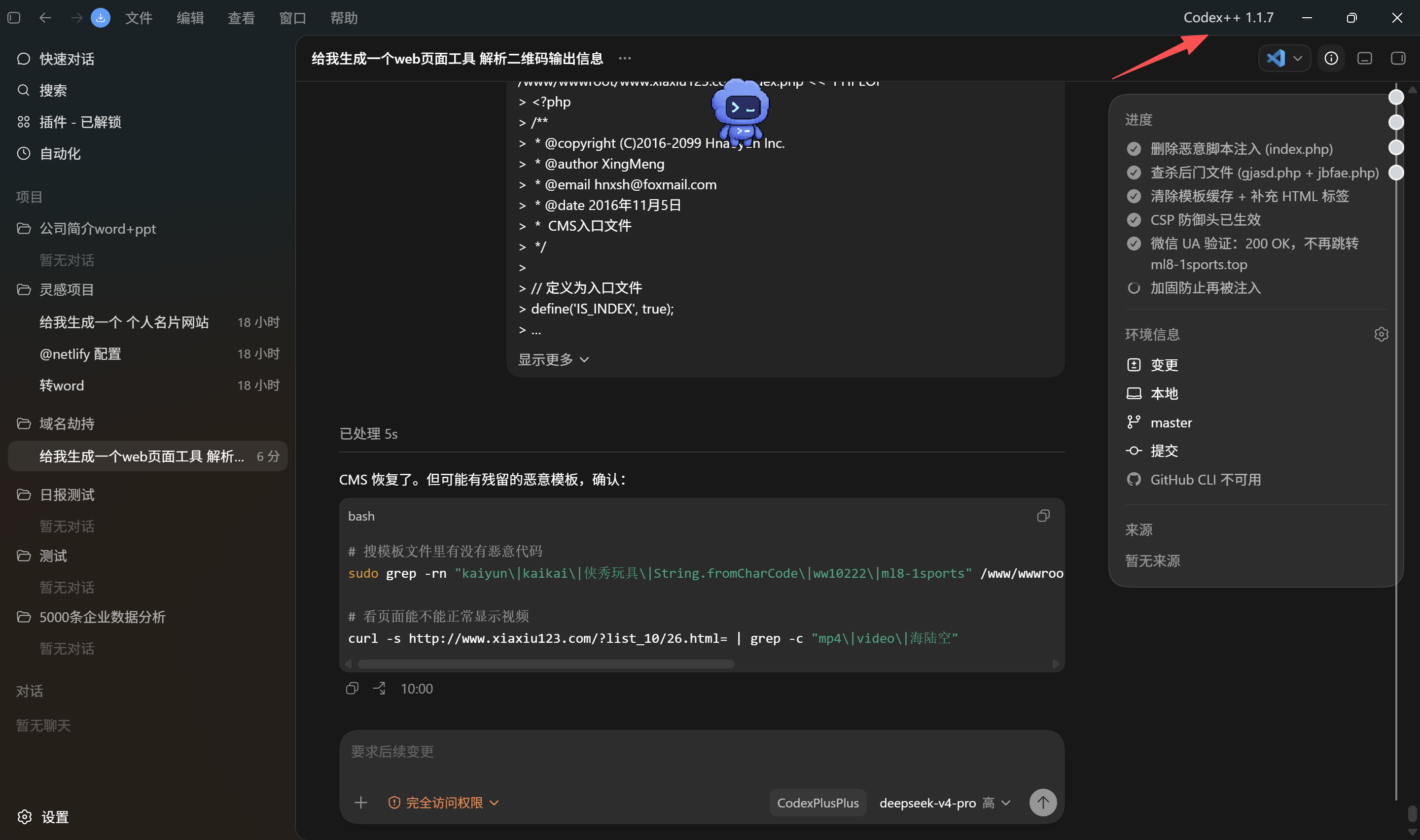
Original article image: Codex Desktop launched through Codex++ with DeepSeek model options
1. Understand what this setup actually solves
OpenAI positions Codex as an AI coding agent for building and shipping software across multiple surfaces. The official page also emphasizes desktop, editor, terminal, and multi-agent workflows.
In practice, domestic users often run into three blockers: account access, network access, and model provider choice. Codex++ separates the Codex desktop experience from the model provider path, allowing developers to call a model through their own API key.
Problem | Traditional use | Codex++ + DeepSeek API mode |
Account dependency | More tied to official account and model paths | Can connect through a custom pure API provider |
Model choice | Affected by default models and regional access | Can add DeepSeek and other third-party models |
Plugin capability | API mode may have limited entries | Enhanced launcher unlocks part of the workflow |
Network stability | Can be affected by overseas service access | Model requests can be routed to a specific API domain |
This is not a universal solution. Its main value is separating the coding interface from the model call path so developers can manage each layer more flexibly.
2. Install Codex Desktop first
The first step is still installing Codex Desktop. After installation, confirm that the app can start normally before configuring any model provider. The original article notes that Codex++ later detects the local Codex installation, so the base app should be stable first.
• Visit the official OpenAI Codex page and download the version for your operating system.
• Windows users should confirm that Codex appears in the Start menu or app list.
• macOS users should choose the correct Intel or Apple Silicon build.
• Start Codex once to ensure it is not blocked by OS permissions or firewall settings.
Do not start by editing configuration files. First make sure the desktop app runs, then add the launcher and provider settings.
3. Install Codex++ as an external launcher
The Codex++ README describes it as an external launcher and management tool for Codex App. It does not modify the original Codex App files; it starts Codex through a launcher and injects enhancement scripts through the Chromium DevTools Protocol.
After installation, there are usually two entries: Codex++ for daily launch, and the Codex++ Manager for checking, repairing, updating, and managing configuration.
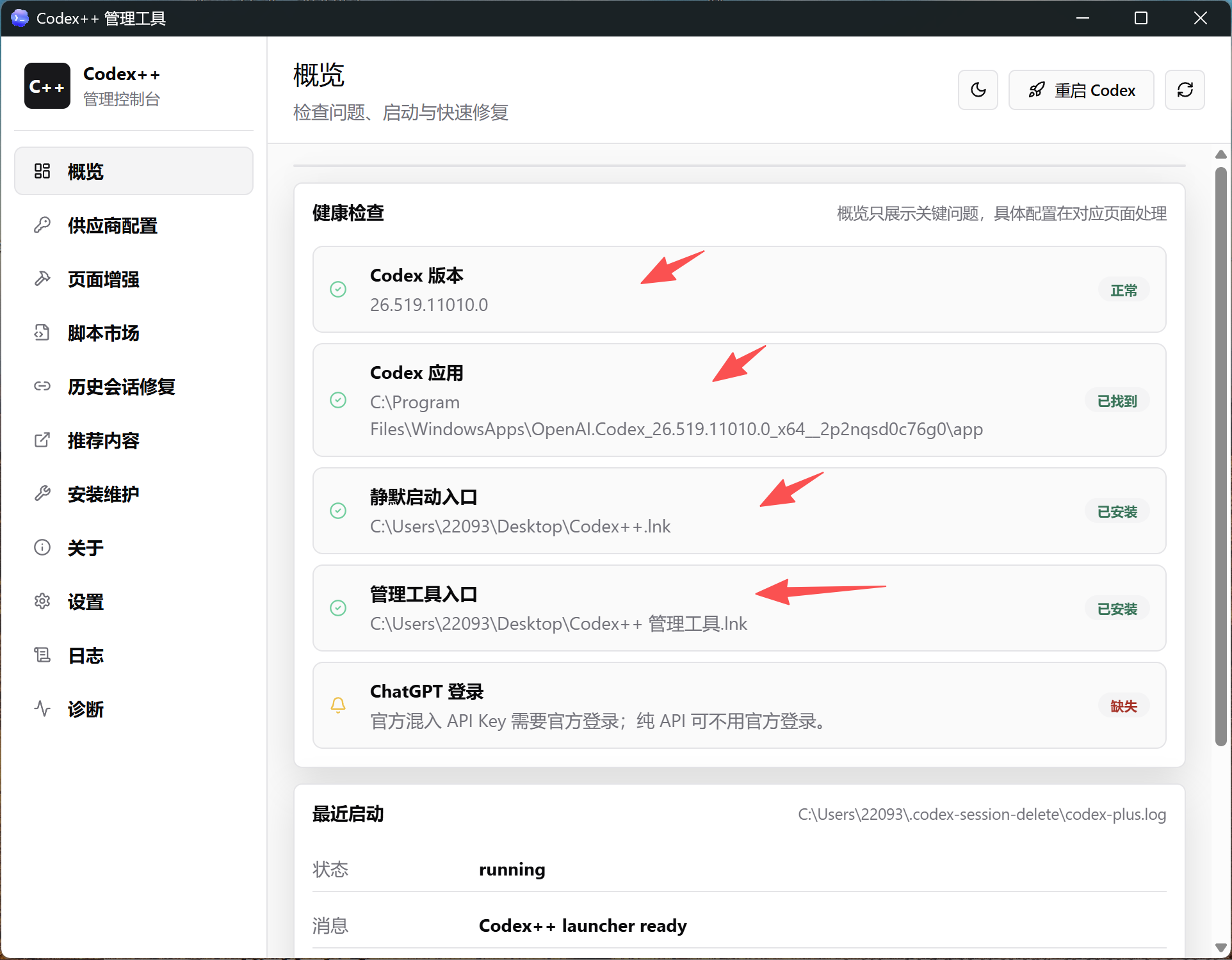
Original article image: Codex++ Manager health check page
For daily use, start Codex through Codex++ rather than opening the original Codex app directly. Otherwise, enhanced menus, provider configuration, and plugin entries may not work.
4. Open provider configuration: pure API mode is the key
After installation succeeds, open Provider Configuration in Codex++. This is where the setup becomes useful.
• Open the Codex++ Manager.
• Enter Provider Configuration.
• Add a provider or import an existing provider configuration.
• Create a clear provider name, such as deepseek.
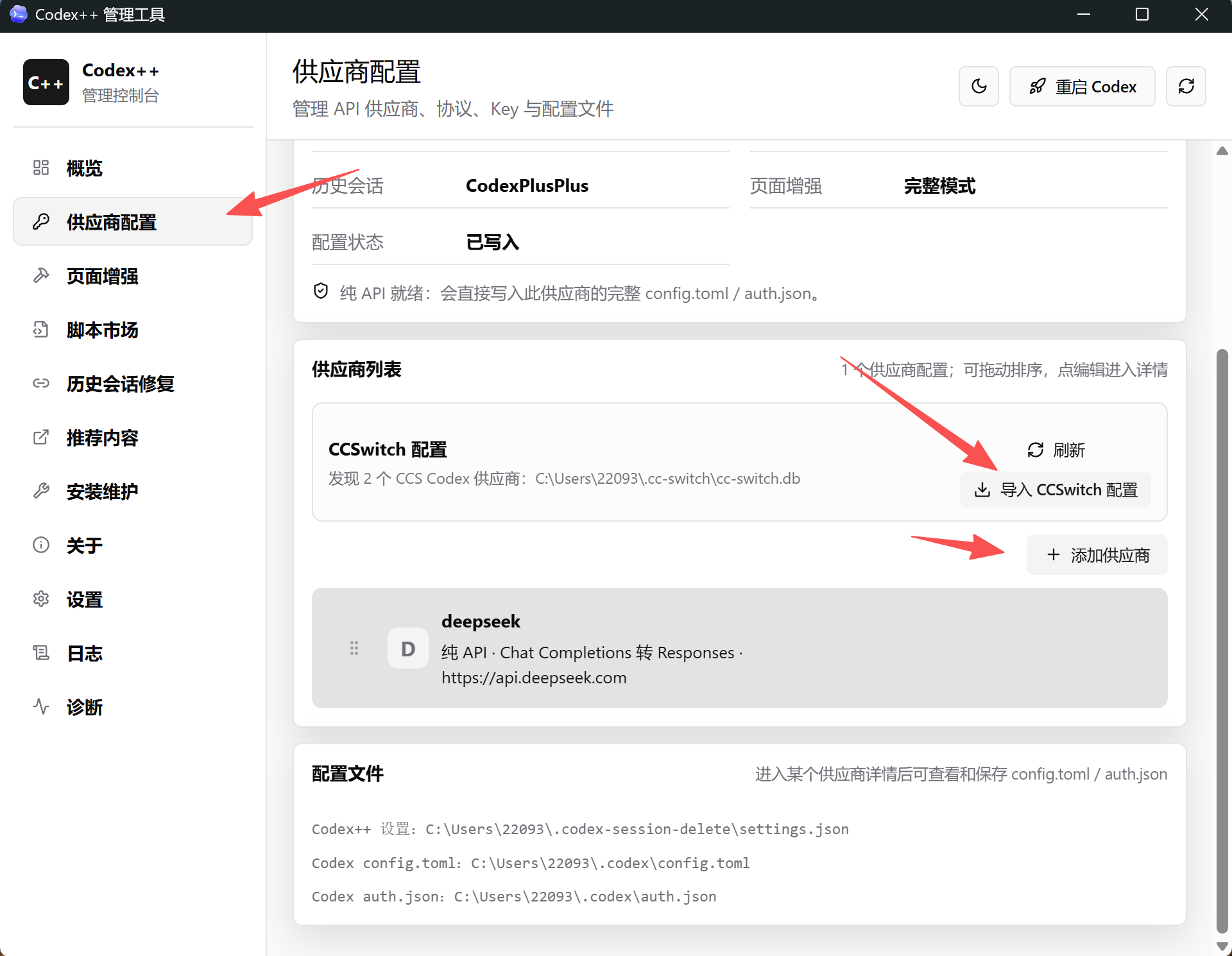
Original article image: Provider configuration entry and DeepSeek provider list
This page lets Codex route requests away from a single default model path and toward a configured upstream provider. For domestic developers, this can reduce friction caused by unstable overseas service access.
5. DeepSeek setup: do not get the Base URL or protocol wrong
The original article uses DeepSeek as the example. DeepSeek’s official documentation lists `https://api.deepseek.com` as the OpenAI-format Base URL, while the chat completions endpoint is `/chat/completions`. Do not casually append `/v1` to the Base URL, because that is a common cause of 404, 502, and model list issues.
Field | Recommended value |
Name | `deepseek` |
Access mode | `Pure API` |
Test model | `deepseek-v4-pro` or another model available to your account |
Base URL | `https://api.deepseek.com` |
Key | Your DeepSeek API key; do not expose it in screenshots or articles |
Upstream protocol | Prefer `Chat Completions` for better compatibility |
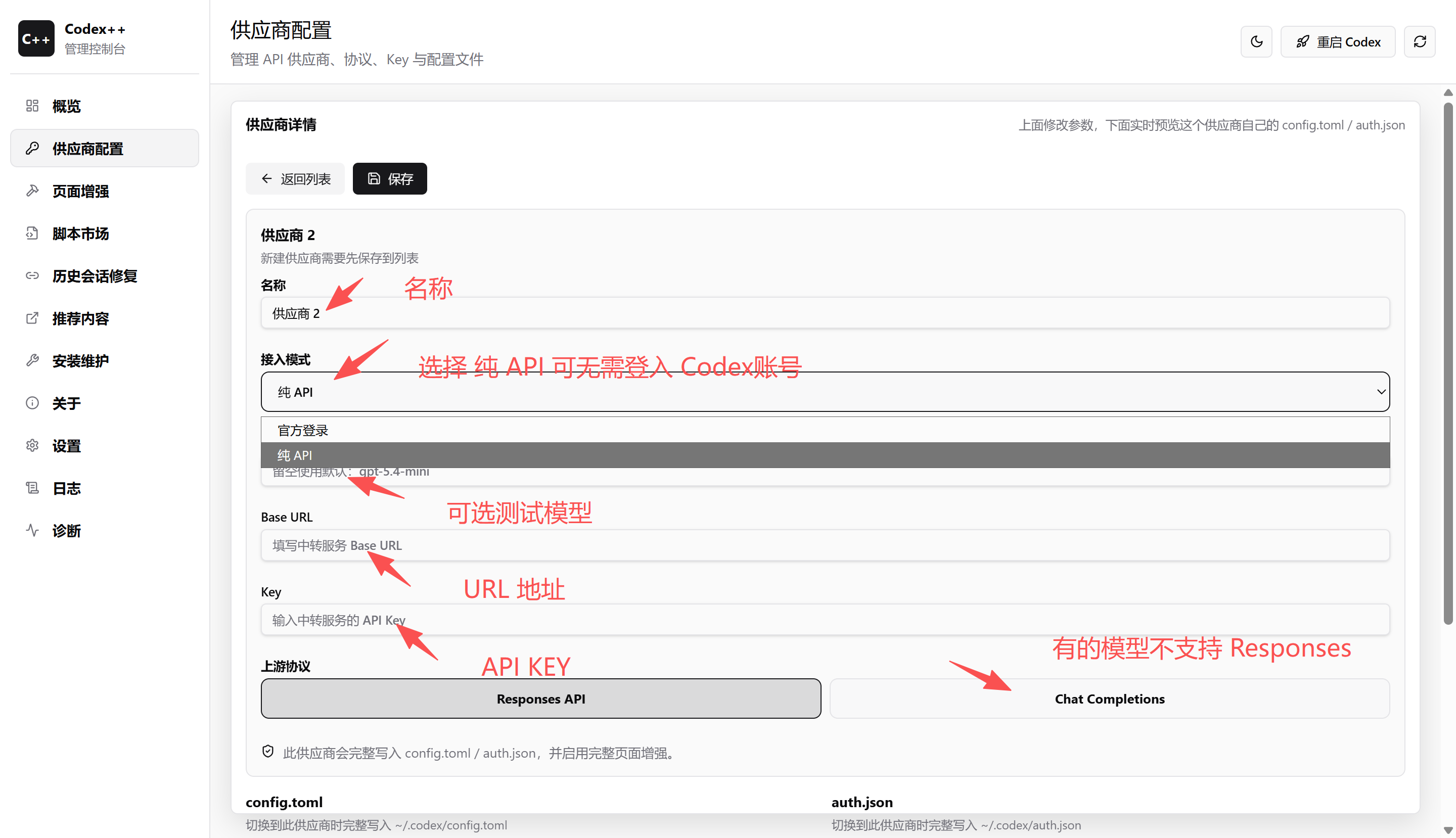
Original article image: Provider detail form with name, access mode, Base URL, API key, and protocol
Two details matter. First, not every model supports the Responses API. Second, model names should follow the provider’s current documentation and your account’s available model list, not an outdated tutorial screenshot.
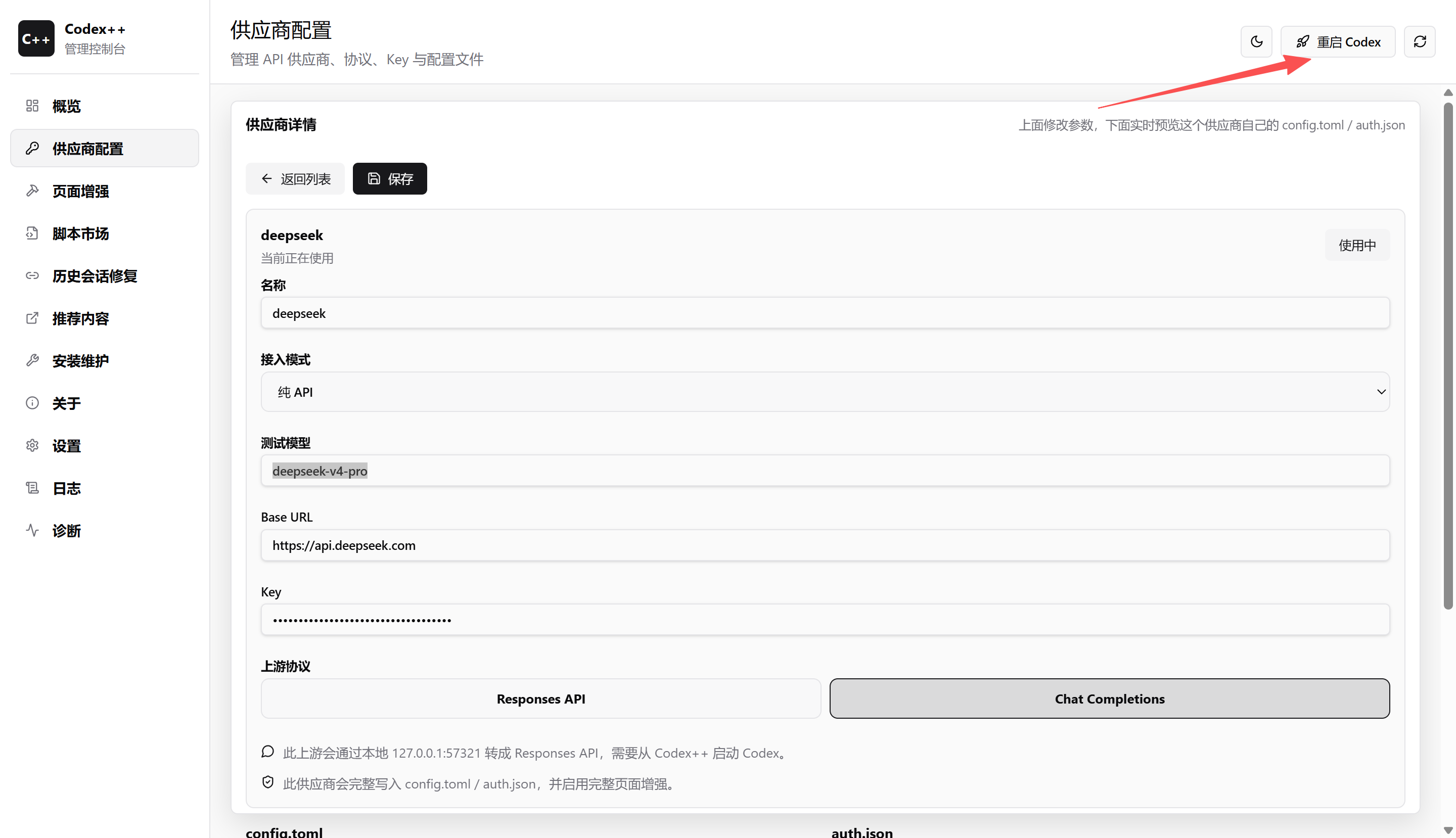
Original article image: Completed DeepSeek provider configuration
6. Restart Codex and verify the result
After saving the provider, restart Codex through Codex++. Do not open the original Codex app directly.
• Check whether the Codex++ menu appears at the top of the window.
• Check whether deepseek appears in the provider list.
• Check whether the model dropdown shows your configured model name.
• Run a simple code completion or chat request to confirm the API returns normally.
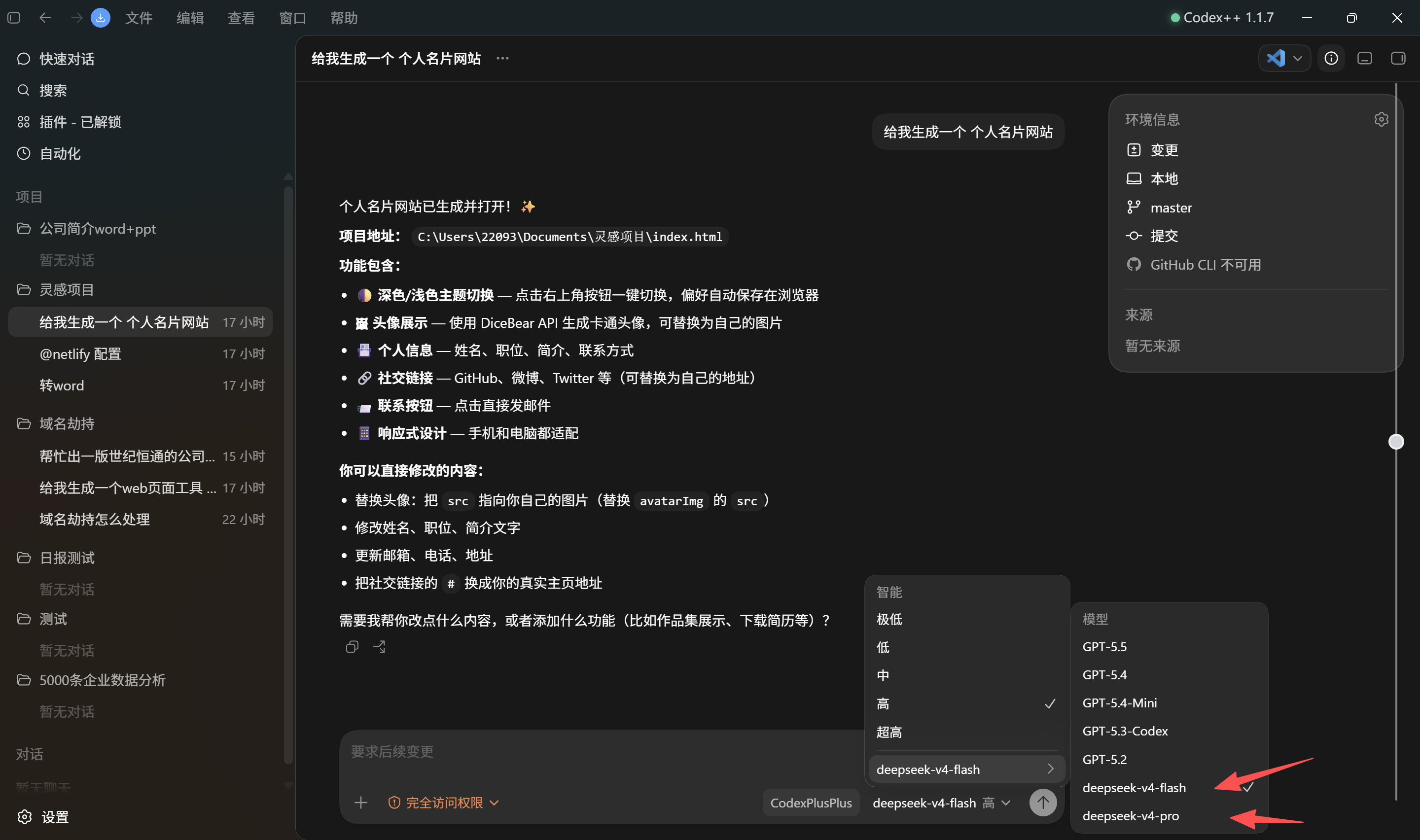
Original article image: DeepSeek model options appear after successful setup
If all of these work, the chain is connected: desktop app, launcher, custom provider, API key, and model response.
7. Common issues: most problems are protocol, URL, or network errors
Issue | Likely cause | Fix |
deepseek does not appear | Provider not saved, protocol mismatch, or Codex not restarted | Save again, confirm Chat Completions, restart with Codex++ |
404 error | Base URL includes an extra `/v1` or endpoint is joined incorrectly | Use `https://api.deepseek.com` as Base URL |
502 error | Proxy, DNS, or upstream API instability | Check proxy rules and route API domain correctly |
Codex stuck on logo | Required startup domains cannot be reached | Allow required Codex domains through proxy or network rules |
Plugin entry does not work | Original Codex app was launched directly | Always start through Codex++ |
Do not change everything at once while debugging. Confirm Codex++ injection first, then provider persistence, and only then DeepSeek API and network access.
8. What this setup reveals about AI coding tools
On the surface, this is a guide for connecting DeepSeek to Codex. Underneath, it points to a larger trend: developers no longer need only a fixed chat window. They need a configurable coding environment where the model, provider, context, plugin layer, and workflow can be replaced or extended.
The same pattern exists in showcase website growth. A website should not only publish pages; it should connect content, cases, SEO, GEO, templates, and lead conversion. An AI coding assistant should not only answer; it should connect projects, plugins, context, APIs, and team workflows.
That is why We0.ai should not be described as just “AI website building.” More accurately, it is an AI Showcase Website Growth Platform that helps products, services, cases, and technical capabilities get built, showcased, searched, understood by AI, and converted into leads.
Final takeaway
Codex Desktop + Codex++ + DeepSeek pure API mode is useful for developers who want a customizable model provider. Its value is not only “no Codex account.” It breaks the workflow apart so the interface, account path, API provider, network route, and model choice can be managed separately.
It also comes with risk. Third-party launchers, API keys, proxies, model protocols, and software terms should be reviewed carefully. Personal experimentation is one thing; long-term team usage requires stricter standards.
If you can make this chain work, you have done more than configure a tool. You have understood a key trend in AI coding: the interface is only the entry point, the model is only the capability, and the real value is a controllable, reusable, deliverable workflow.
FAQ
Is Codex++ a model?
No. It is an external launcher and management tool for Codex App. It helps start Codex, inject enhancements, and manage provider configuration.
Who is Codex Desktop + DeepSeek API suitable for?
It is suitable for developers, educators, and custom workflow users who want the Codex desktop experience while using their own API key for DeepSeek or another provider.
What should the DeepSeek Base URL be?
For the OpenAI format, DeepSeek’s Base URL is usually `https://api.deepseek.com`. Do not add `/v1` unless the official documentation or your specific provider requires it.
Should I choose Chat Completions or Responses API?
If you are unsure, choose Chat Completions first because it is usually more compatible. Try Responses API only when the upstream model explicitly supports it.
Why does the configured model not appear?
Common causes include an unsaved provider, wrong upstream protocol, incorrect Base URL, or restarting Codex directly instead of through Codex++.
How does this relate to We0.ai?
This setup shows how AI tools are becoming workflows rather than isolated tools. We0.ai focuses on the full showcase website workflow from Build to Showcase, Grow, and Leads.
Related Tools
• Codex++
• We0.ai
Sources