OpenCode Complete Guide: Install, Configure, and Build Reusable Skills
A practical OpenCode guide covering installation, model connection, Skill configuration, Windows/WSL notes, AGENTS.md, opencode.jsonc, and reusable AI coding workflows.
The most underrated part of OpenCode is not whether it can write code for you.
The real question is whether it can turn repeated development actions into a reusable workflow. Install it once. Configure the model. Add project rules. Then use Skills to define how a certain task should be handled. That is how the AI stops acting like a new teammate who needs the same context explained again and again.
The original article has a clear path: get OpenCode running, then configure Skills. This rewrite keeps that structure while updating the setup logic with the current official documentation.
For a platform like We0ai, this matters because AI coding agents are not only about writing code. They can help teams connect websites, components, SEO/GEO pages, and growth experiments into the larger Build -> Showcase -> Grow -> Leads workflow.
What OpenCode is: not a chat window, but an AI coding agent in the terminal
OpenCode is best understood as an AI coding agent for developers. It can run in the terminal and is also available through desktop and IDE-related experiences. Compared with a normal chatbot, it is closer to an engineering assistant that can read a project, understand context, edit files, and help with debugging.
This is why it pairs well with Skills. Instead of asking “write this function” every time, you can define repeatable behavior for release notes, SEO page reviews, test fixes, pull request checks, and code reviews.
Step 1: Install OpenCode
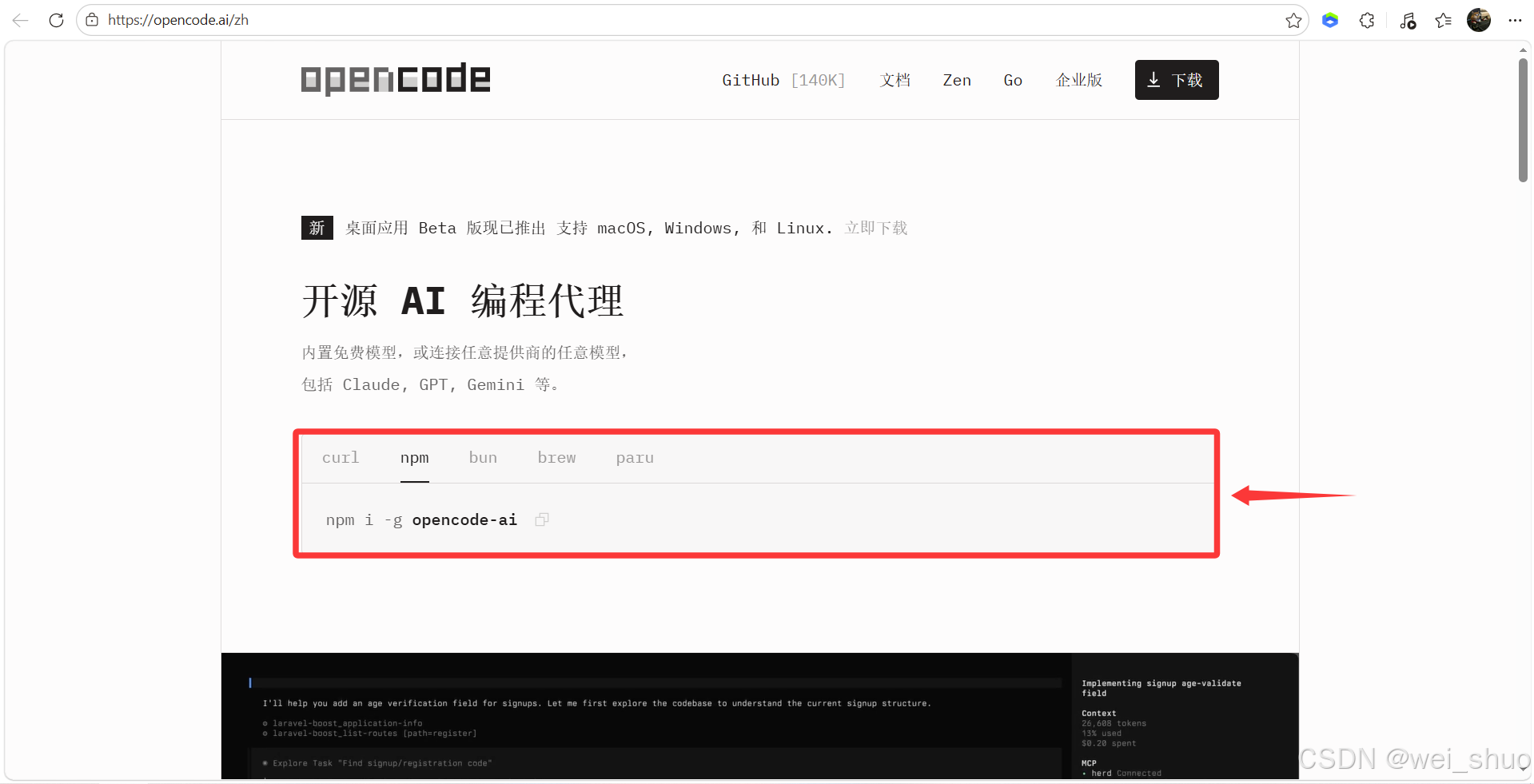
Original image: OpenCode official installation entry.
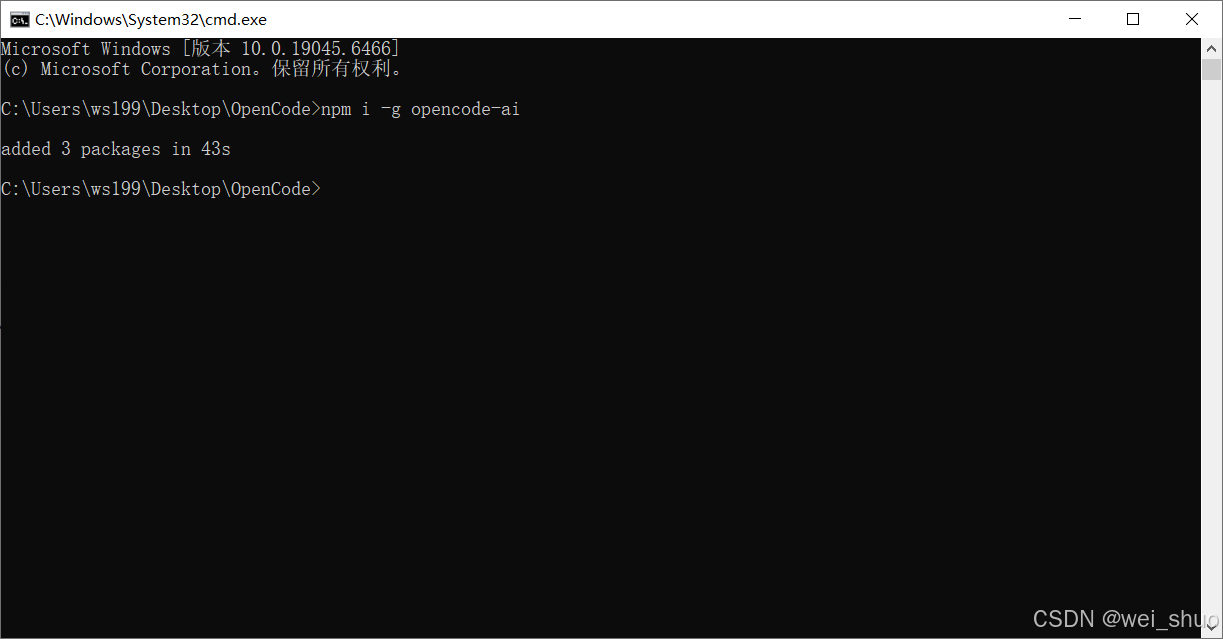
Original image: installing OpenCode globally with npm in Windows Terminal.
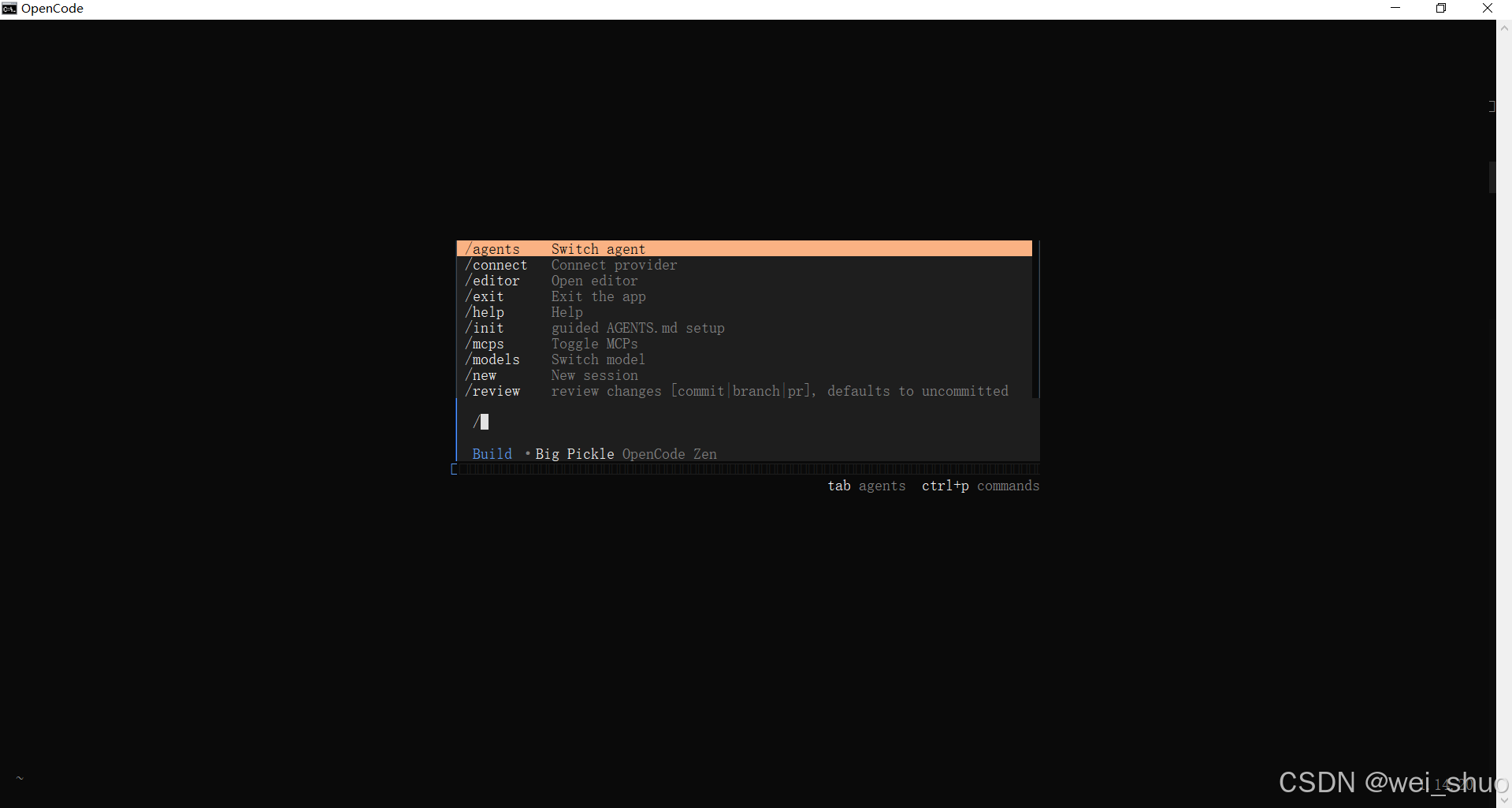
Original image: the OpenCode terminal interface after launch.
The official documentation lists the install script as the easiest starting point. You can also install OpenCode with npm, Bun, pnpm, Yarn, Homebrew, or other package managers. For many frontend and full-stack developers, npm is still the most familiar entry point.
# Recommended: official install script curl -fsSL https://opencode.ai/install | bash # Install with Node.js npm install -g opencode-ai # Start opencode
Windows users should pay attention to the environment. If your workflow depends on terminal tools, dependencies, Git, and shell scripts, WSL is usually the smoother choice. Running directly on Windows can work, but Linux-like environments often reduce path and permission friction.
Step 2: Connect a model instead of blindly trusting the default
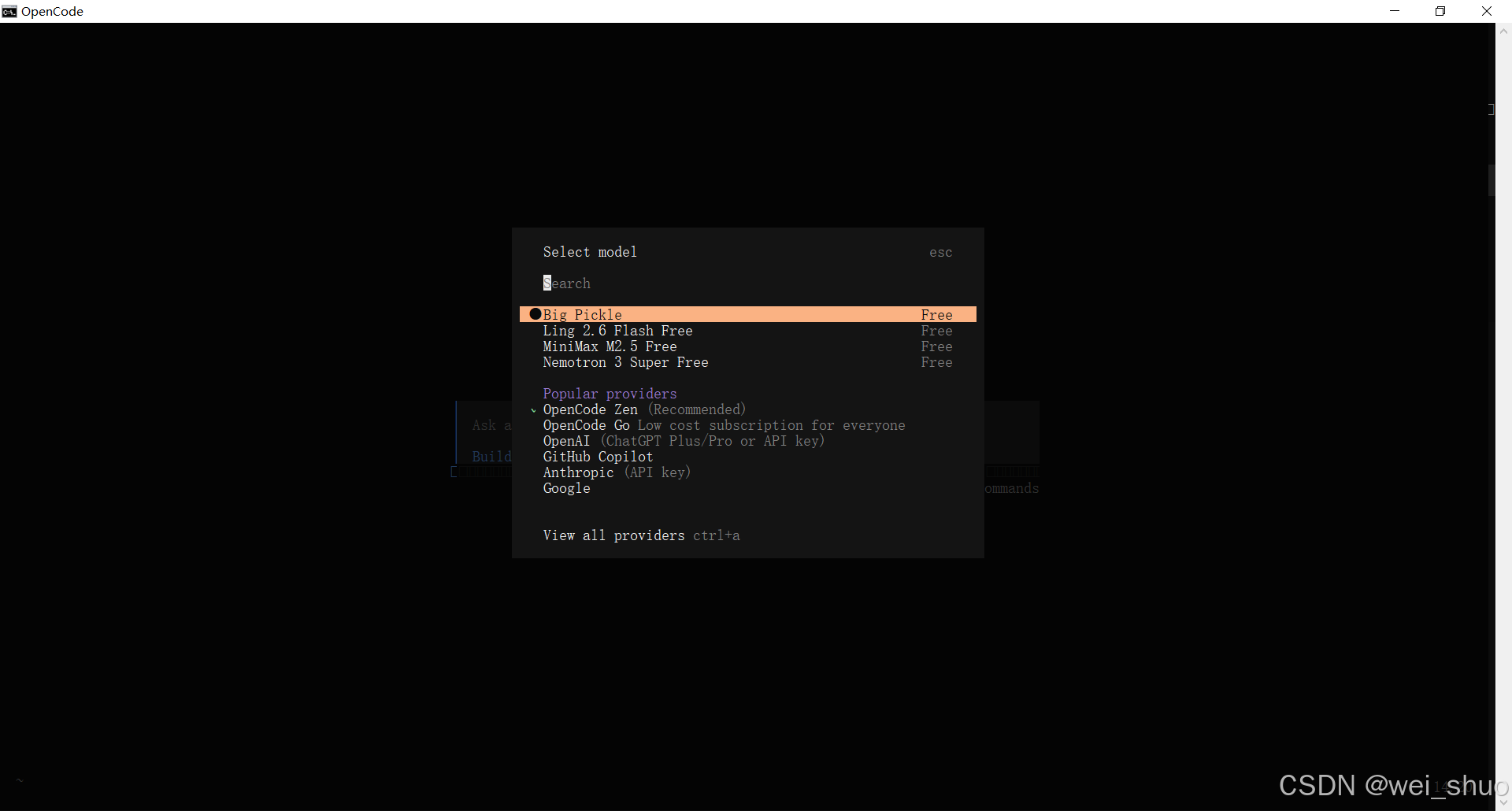
Original image: viewing and switching models in OpenCode.
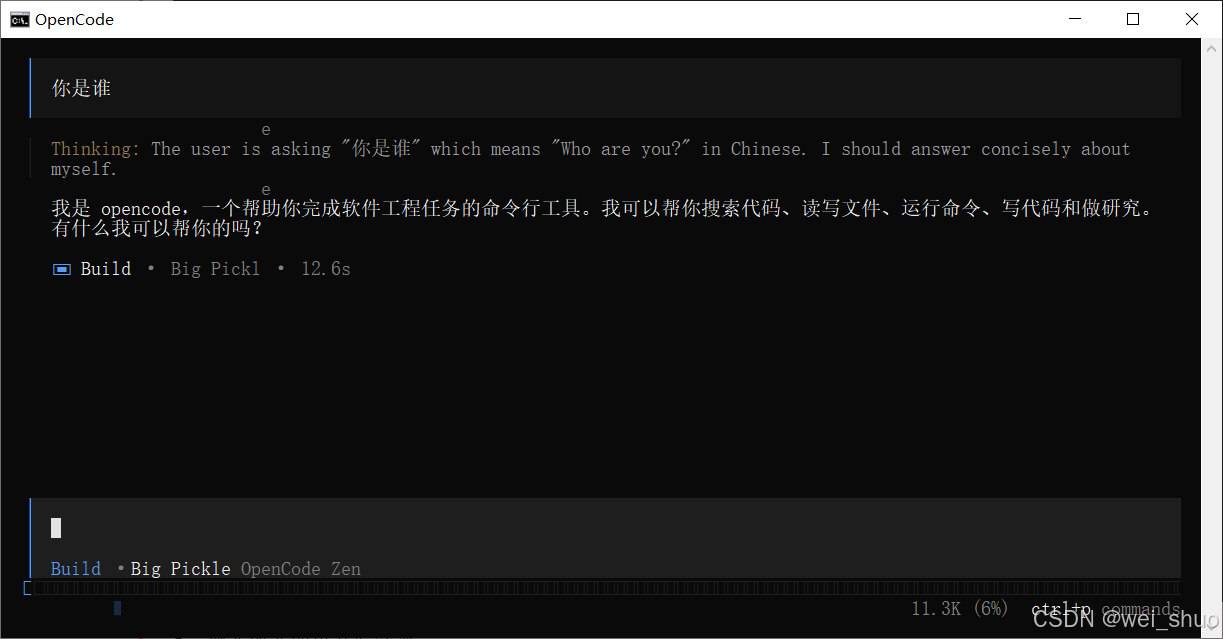
Original image: starting the first conversation after choosing a model.
Model choice is where many first-time users get stuck. Do not choose only by “free” or “strongest.” Start with the type of work you need.
The official docs recommend using /connect inside the TUI to connect your provider. After the key is configured, open a project directory and start OpenCode there.
# Connect a provider in the OpenCode TUI /connect # Start in a project cd your-project opencode
Step 3: Manage configuration with opencode.jsonc
Default settings are enough for a quick test. But if you want OpenCode to become part of your long-term workflow, the config file matters. OpenCode supports JSON and JSONC configuration, and global and project configuration can be combined.
{ "$schema": "https://opencode.ai/config.json", "model": "anthropic/claude-sonnet-4-5", "autoupdate": true, "permission": { "edit": "ask", "bash": "ask" }, "instructions": [ "AGENTS.md" ] }
The goal is not to make the configuration look complex. The goal is to make the working boundaries clear: which model to use, how updates work, which actions require approval, and which project rules must be read.
Step 4: Understand Skills, the core of reusable behavior
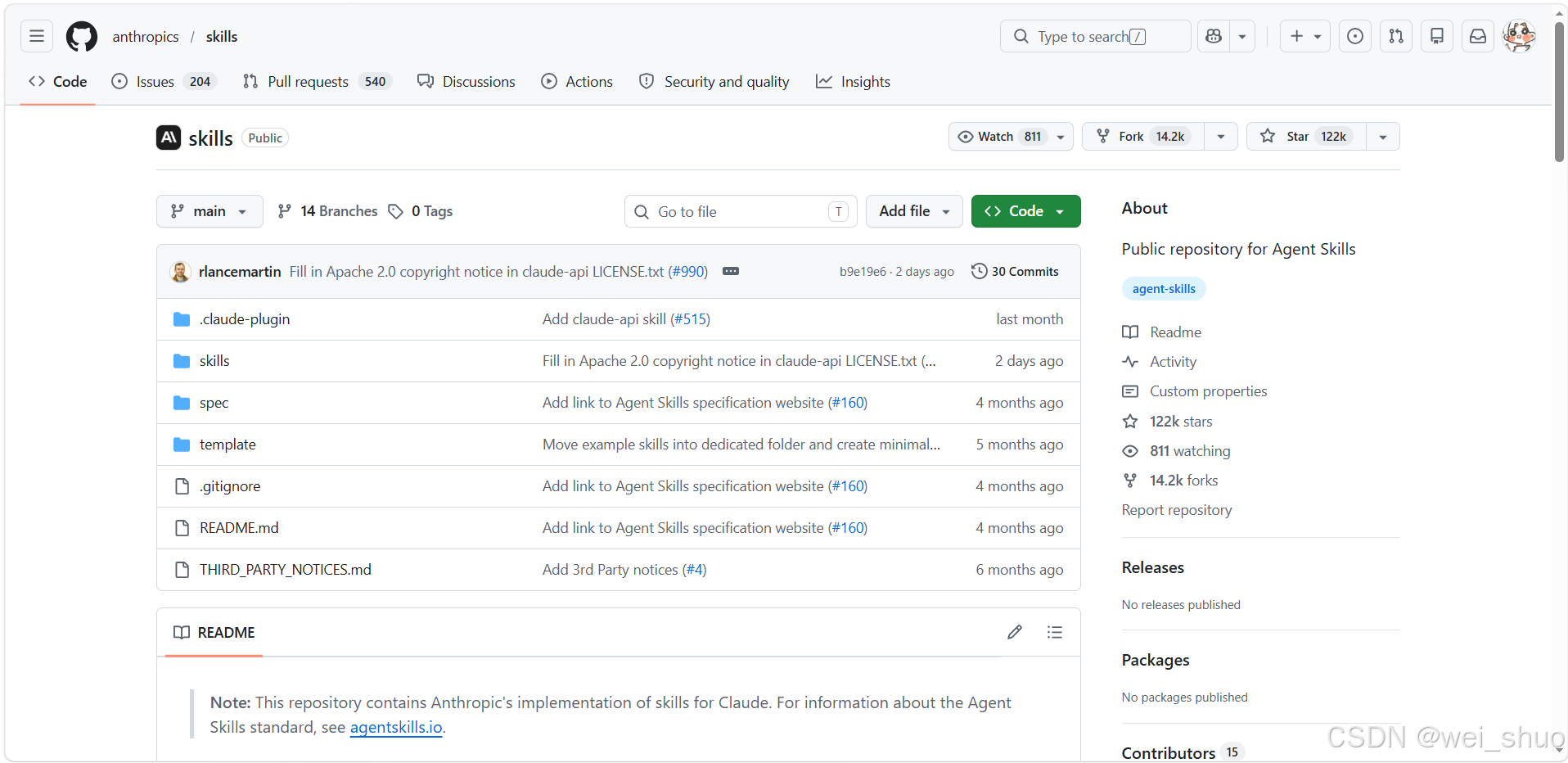
Original image: the official Anthropic Skills repository.
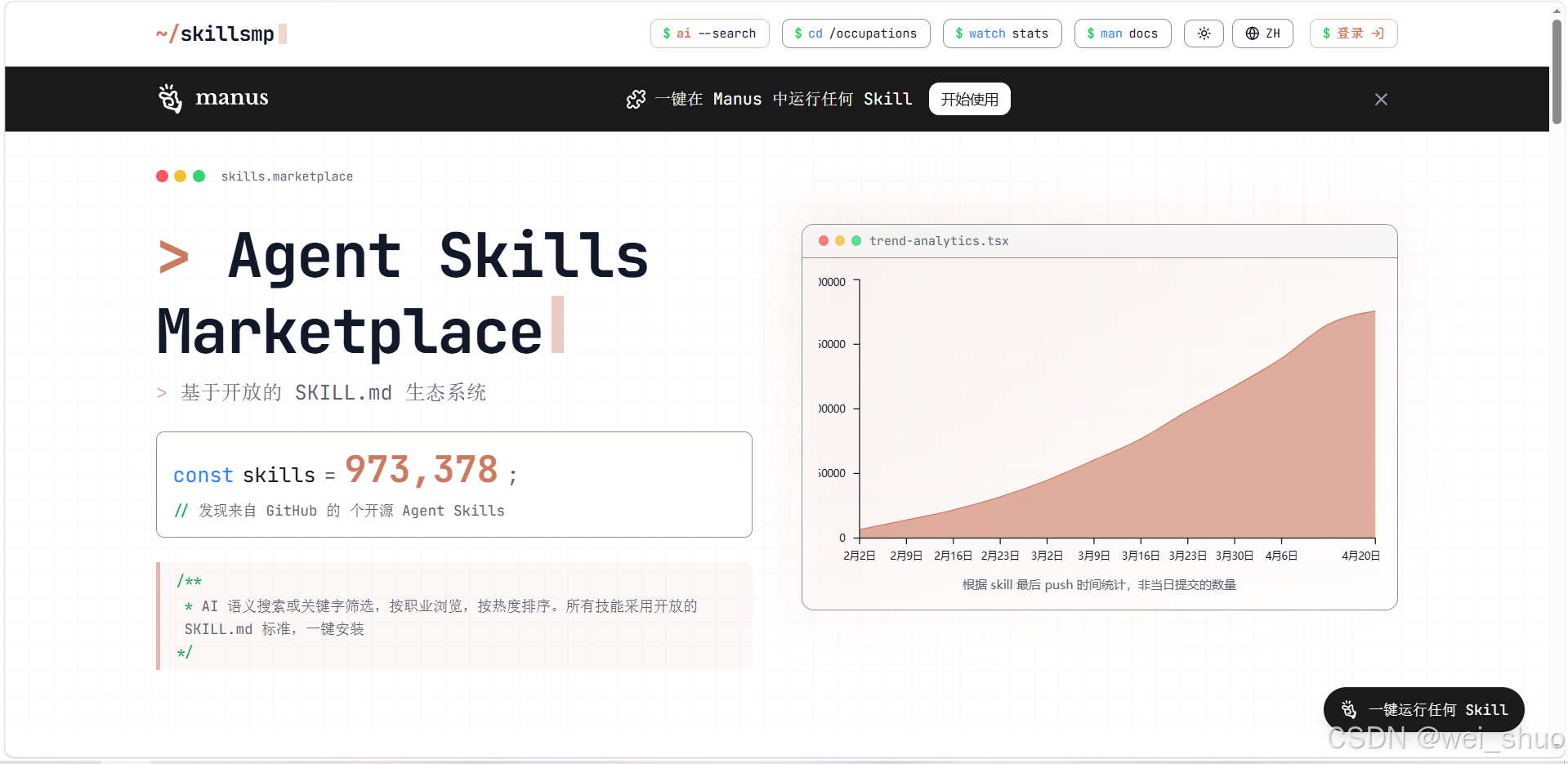
Original image: a Chinese community Agent Skills Marketplace.
A Skill is not just another folder. It is a reusable instruction package for the AI assistant. You describe how a specific task should be judged, executed, and returned. Then OpenCode can load that behavior when it is useful.
According to the official docs, OpenCode searches for Skills in project-level .opencode/skills, global ~/.config/opencode/skills, and compatible Claude / Agents skill directories.
# Project-level Skill your-project/ .opencode/ skills/ seo-page-review/ SKILL.md # Global Skill ~/.config/opencode/skills/ release-notes/ SKILL.md
A minimal SKILL.md usually needs a name and a description. The name should be short, lowercase, and hyphenated. The description should be specific enough for the agent to know when to load it.
--- name: seo-page-review description: Review a showcase website page for SEO, GEO, trust signals, and lead conversion. compatibility: opencode --- ## What to check - Search intent and page structure - Trust signals and proof - Lead capture path - Internal links and conversion clarity
Step 5: Windows global Skill configuration
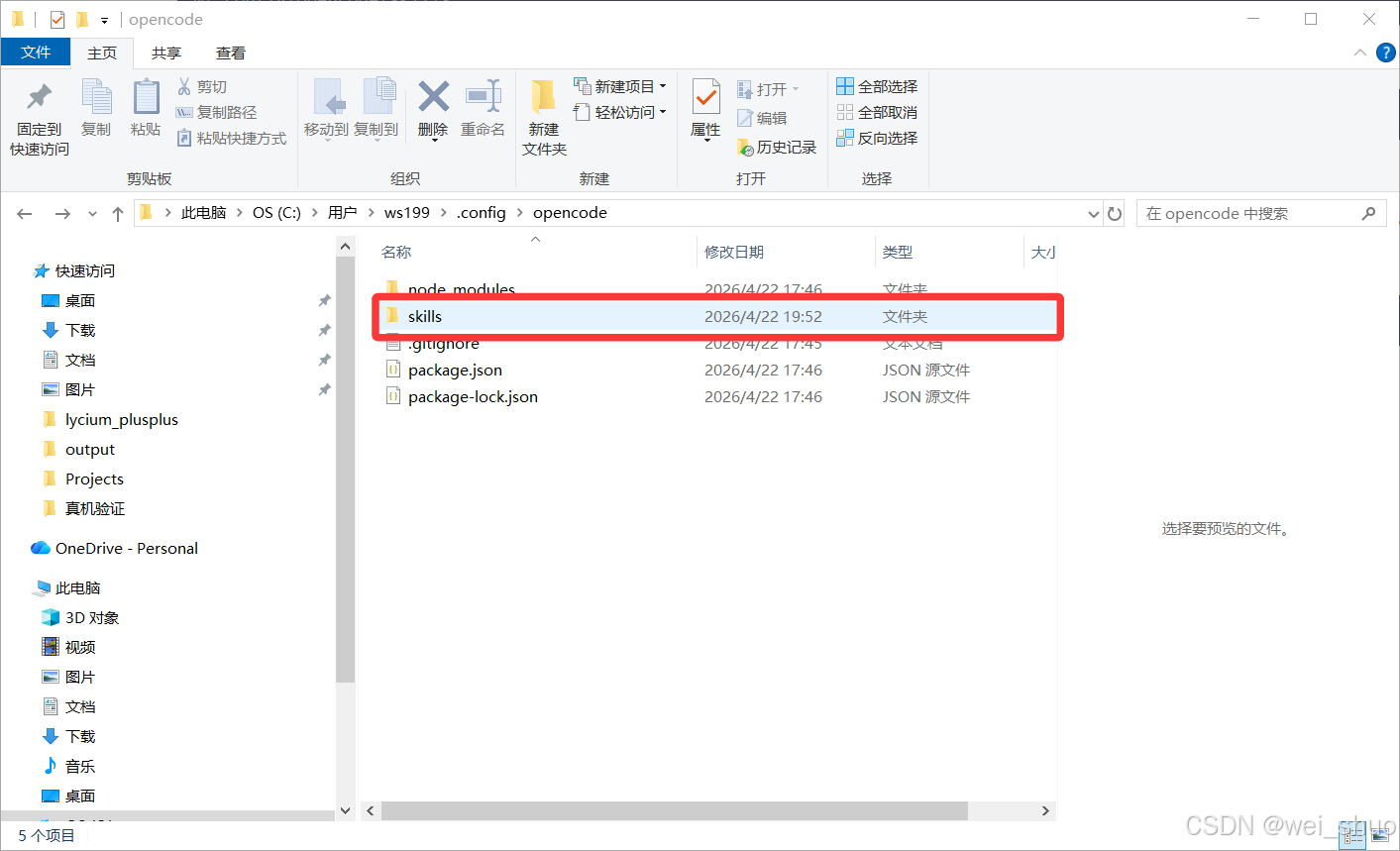
Original image: the OpenCode skills folder under a Windows user directory.
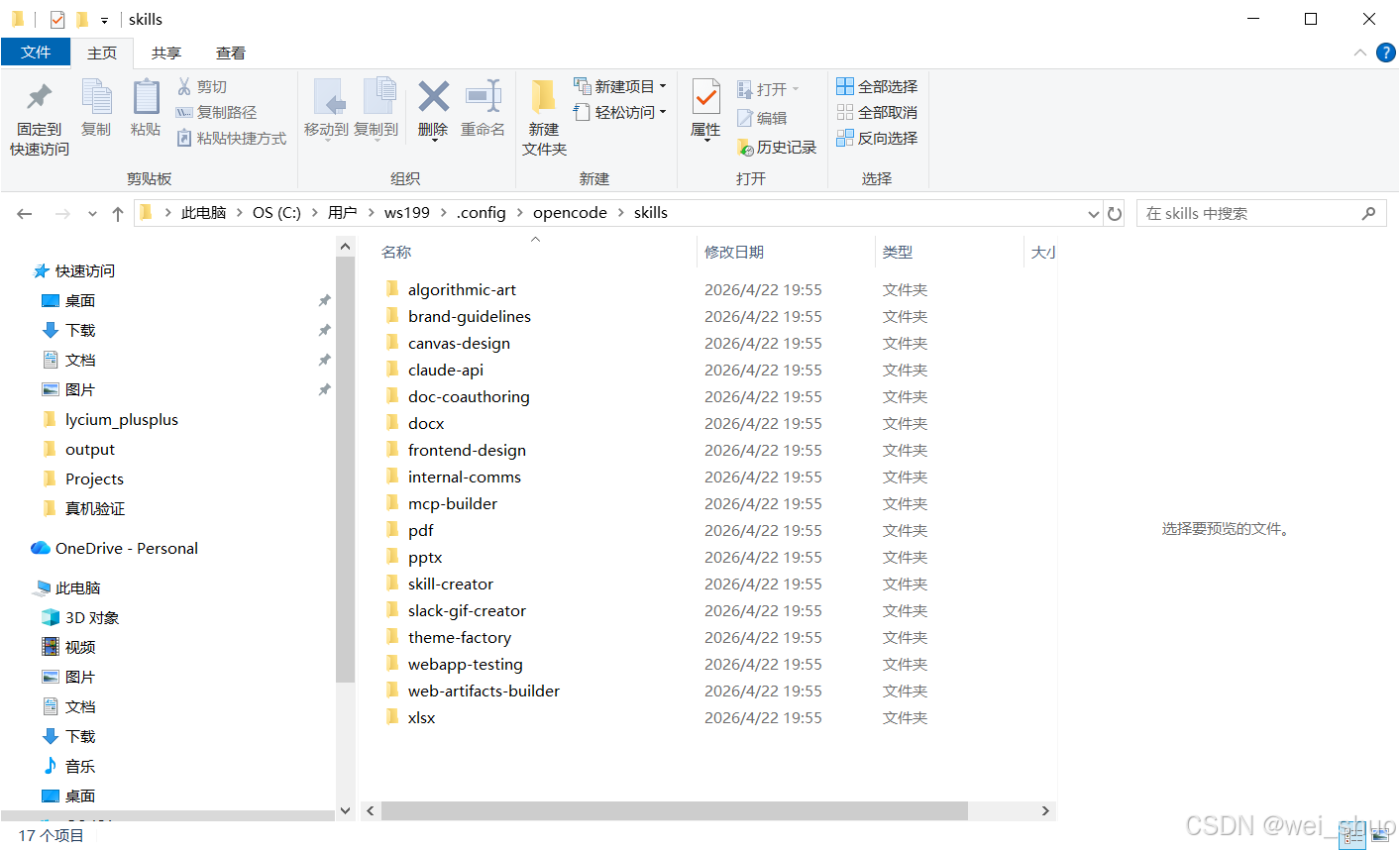
Original image: multiple Skill folders inside the skills directory.
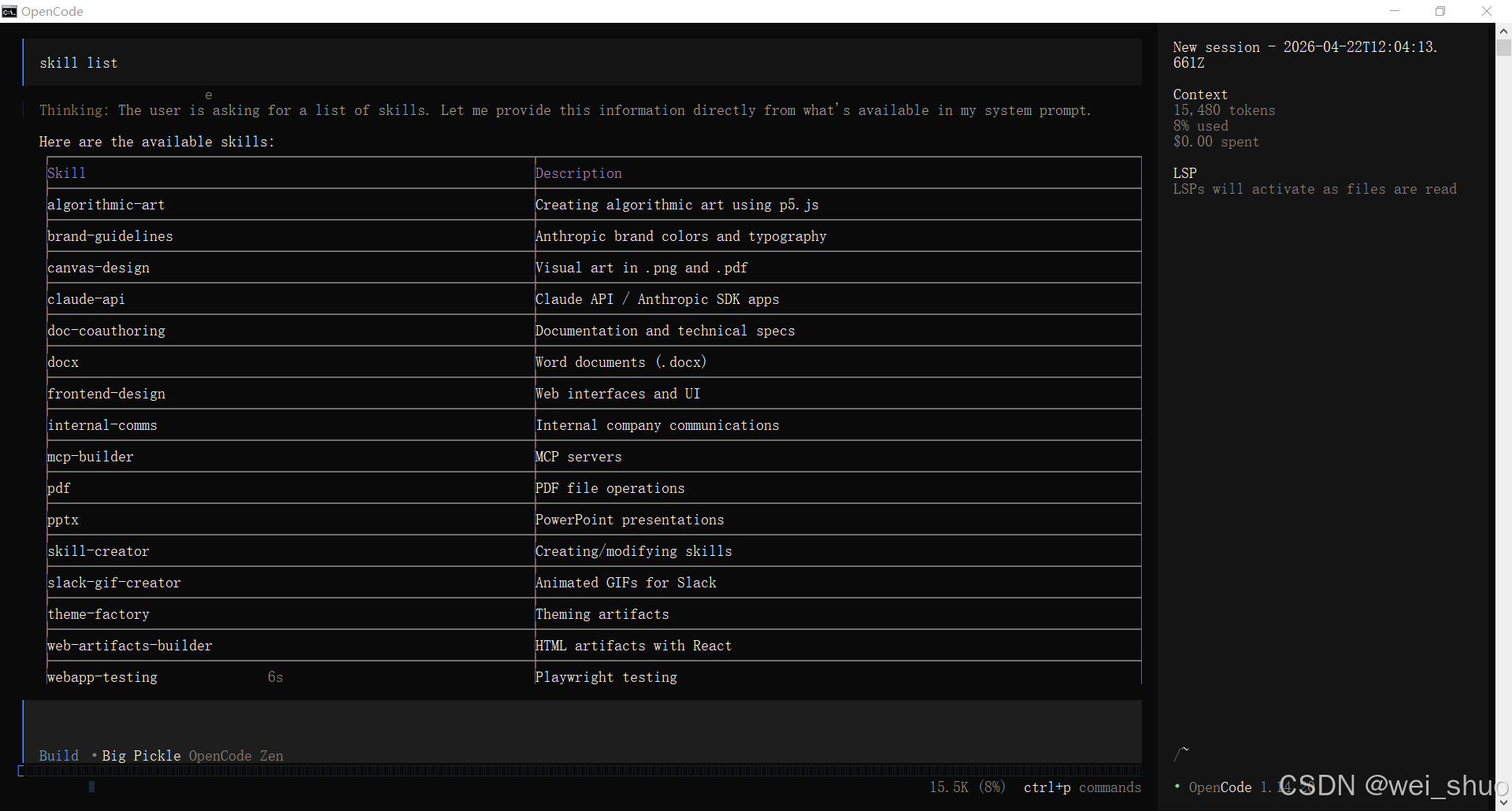
Original image: checking loaded Skills with skill list.
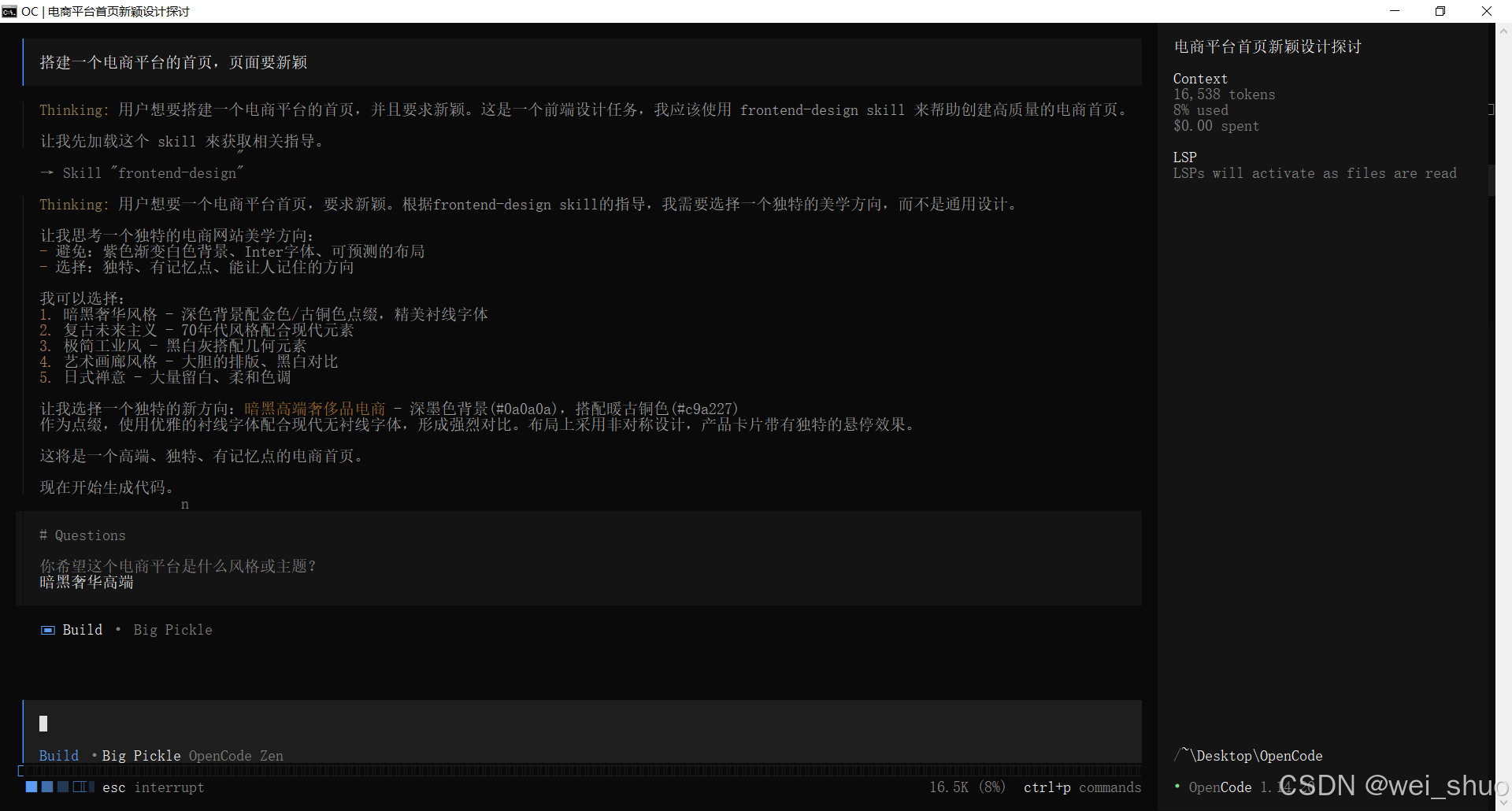
Original image: OpenCode automatically matching the frontend-design Skill.

Original image: page code and structured output generated after the Skill is triggered.
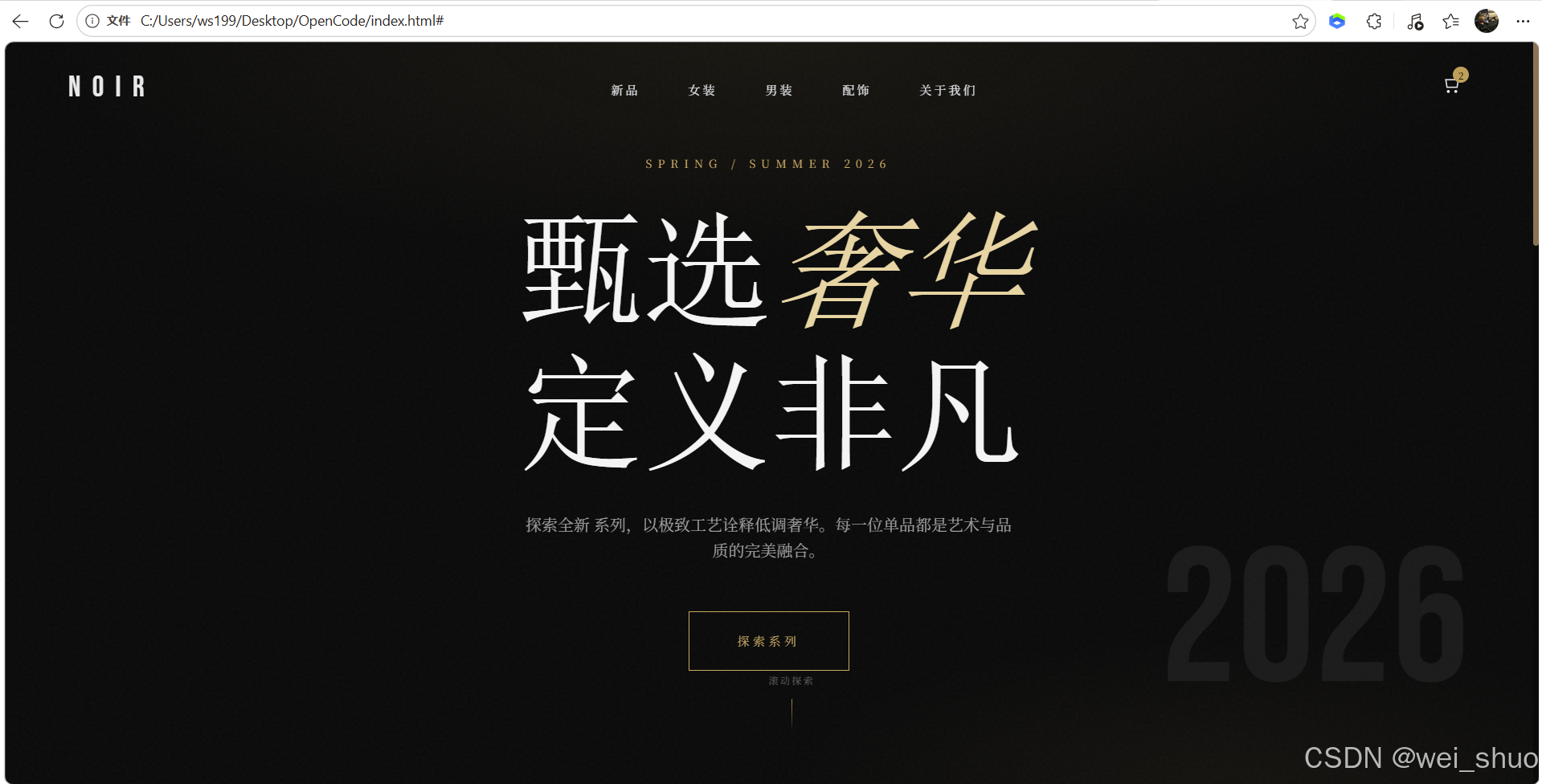
Original image: final webpage preview generated by OpenCode.
The original article focuses on global Skill configuration on Windows. The idea is useful: if every project should use the same Skill, place it in a user-level directory. If the Skill is only for one project, keep it at the project level.
A simple rule helps: if the Skill represents team knowledge, keep it with the repository. If it is only your personal habit, keep it global.
Step 6: Do not mix AGENTS.md, Skills, and config files carelessly
Many teams put everything into one messy instruction file. That makes the assistant harder to control. A cleaner setup separates responsibilities.
In short: AGENTS.md is for long-term project rules, Skills are for specific repeatable tasks, and opencode.jsonc is for runtime configuration.
OpenCode and We0ai: build layer meets growth layer
OpenCode mainly helps with the Build layer: code, refactoring, scripts, project rules, and reusable development workflows. We0ai focuses on Showcase and Growth: turning products, services, cases, templates, content, and SEO/GEO pages into showcase websites that can be found, understood by AI search, and converted into leads.
They are not replacements for each other. A practical setup is to use OpenCode to improve development and content-engineering workflows, while using We0ai to turn the final website into a growth asset for users and search traffic.
Final takeaway
OpenCode is not hard to install. The real question is whether you treat it as a long-term workflow tool.
If you only install it, you get an AI coding assistant. If you configure models and permissions, you get a more stable project assistant. If you use Skills, AGENTS.md, and opencode.jsonc well, you get an AI development system that can be reused, moved across projects, and shared by a team.
For teams building showcase websites, SEO/GEO pages, product case pages, and growth experiments, that matters. Website growth does not stop at page generation. It requires code, content, components, and workflows to keep improving.
That is also the logic behind We0ai: Build -> Showcase -> Grow -> Leads. Build the asset, showcase the value, grow visibility, and turn attention into leads and customers.
CTA: If your website needs to do more than go live, design the development workflow and the showcase growth path together.
FAQ
What is OpenCode?
OpenCode is an AI coding agent for developers. It helps with code understanding, editing, generation, and project collaboration from the terminal.
How do I install OpenCode?
You can use the official install script or install it with npm install -g opencode-ai.
What are OpenCode Skills for?
Skills package reusable task instructions such as code review, SEO page review, release notes, and test-fix workflows.
Where should Skills be placed?
Common paths include .opencode/skills/<name>/SKILL.md and ~/.config/opencode/skills/<name>/SKILL.md.
What is the difference between AGENTS.md and SKILL.md?
AGENTS.md is better for long-term project rules, while SKILL.md is better for specific repeatable task workflows.
How is this related to We0ai?
OpenCode supports the build layer, while We0ai supports showcase and growth. Together they can connect code, content, SEO/GEO, and lead conversion.
Related Tools
- OpenCode
- Node.js
- npm
- We0ai
Sources
- Original CSDN Article: OpenCode Complete Guide