Claude Code with DeepSeek on WSL/Linux: Install, Configure, Test, and Fix Common Errors
Learn how to install Claude Code on WSL or Linux, route it through DeepSeek’s Anthropic-compatible endpoint, verify the connection, and fix common 401, 403, and 404 errors. This practical guide covers npm installation, ~/.claude/settings.json, environment variables, model selection, and a safer setup path for developers working in restricted regions.
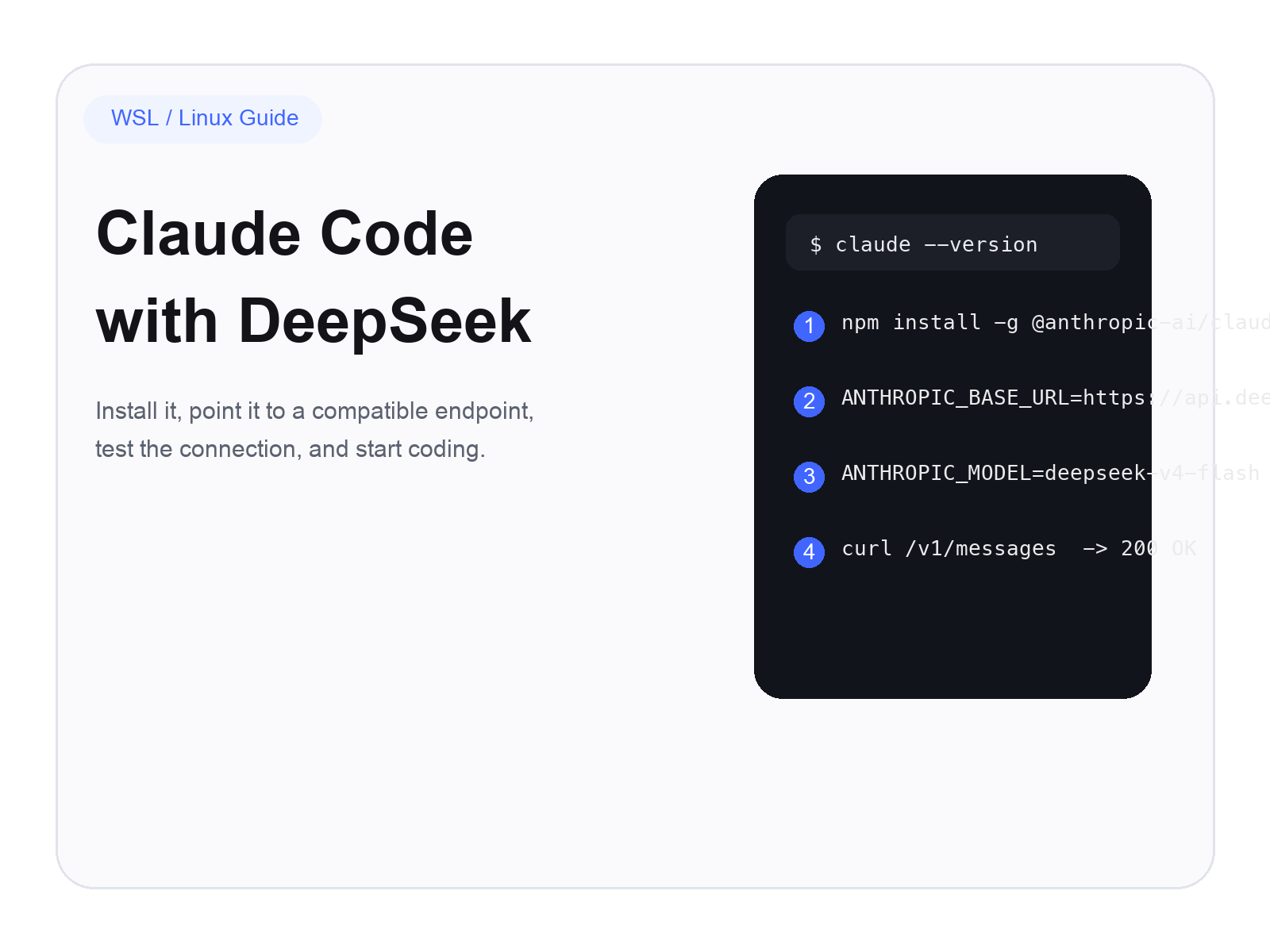
Claude Code with DeepSeek cover
If you want Claude Code to run inside WSL or Linux without relying on Anthropic’s direct endpoint, the cleanest path right now is to point it at DeepSeek’s Anthropic-compatible API.
That is the core move behind the original tutorial, and honestly, it solves the exact problem many developers keep running into: Claude Code installs fine, but the first real session fails because of region access, endpoint routing, or model configuration.
So instead of turning this into a vague “AI coding tools overview,” let’s keep it practical. We’ll do four things:
Install Claude Code on WSL or Linux
Route it through DeepSeek
Test the endpoint before you waste time debugging the CLI
Fix the common errors that usually show up first
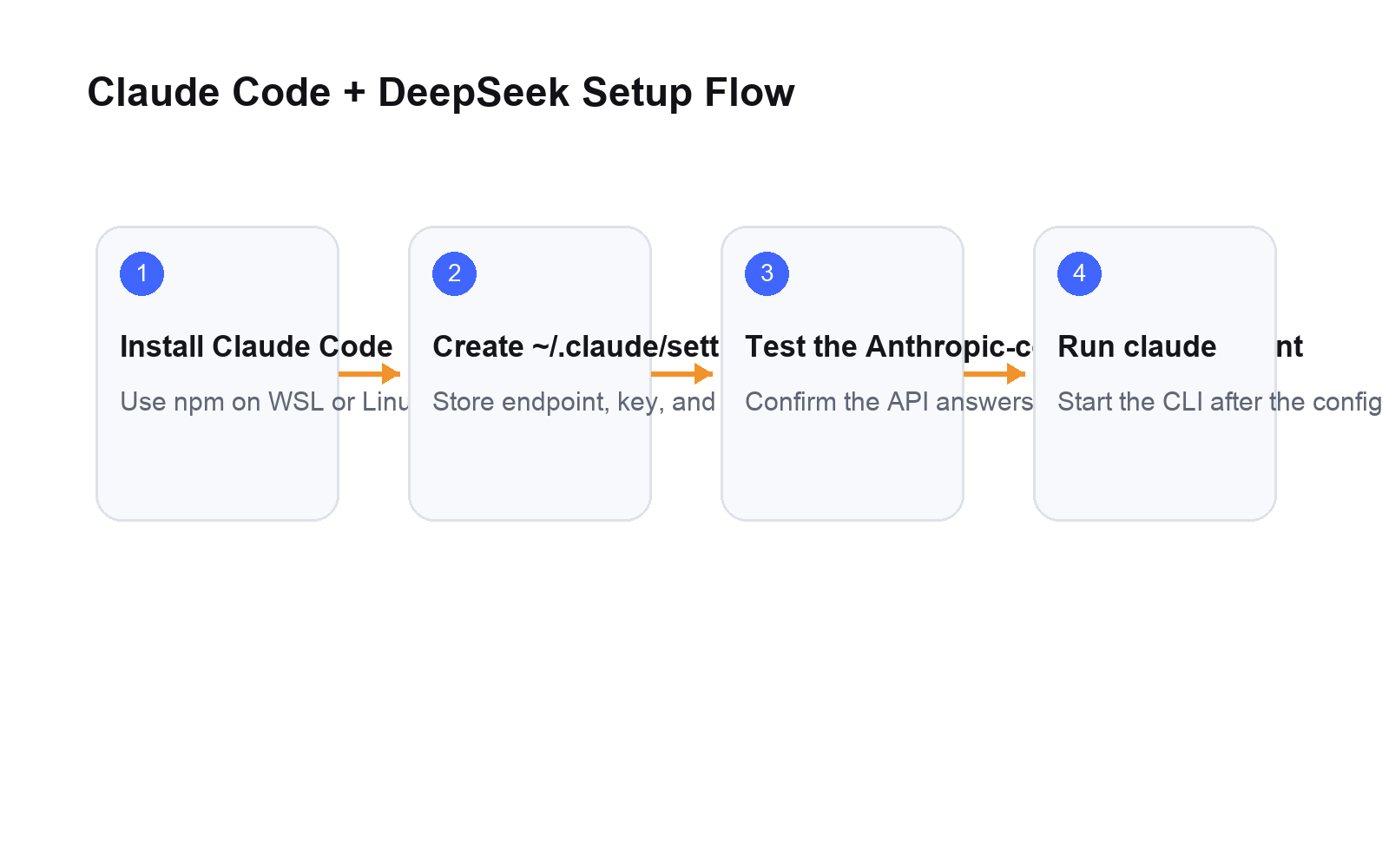
Claude Code and DeepSeek setup flow
Why This Setup Matters
On paper, Claude Code is just another terminal-based coding assistant. In practice, what makes it useful is that it can read your repo, run commands, inspect files, and stay inside a real development workflow instead of acting like a chat box that happens to know some code.
The friction starts when connectivity does.
For developers working in constrained network environments, the official default route can become the real blocker. That is why the DeepSeek approach is attractive: you keep the Claude Code workflow, but swap the backend path to an Anthropic-compatible endpoint that DeepSeek exposes.
This is also where the guide becomes more useful than a random “copy these commands” post. The difference between a setup that looks correct and one that actually works usually comes down to:
which environment variables you set
where you persist them
which model name you use
whether you test the endpoint before launching claude
Step 1: Install Claude Code on WSL or Linux
The source article uses the npm-based install path, and that still works well when you already have Node ready in WSL or Linux.
If your network is unstable, switch to the official npm registry first, install Claude Code globally, then switch back to your usual mirror afterward:
# Switch to the official npm registry
npm config set registry https://registry.npmjs.org
# Install Claude Code globally
npm install -g @anthropic-ai/claude-code
# Switch back to your preferred mirror
npm config set registry https://registry.npmmirror.com
If your network is fine, the short version is enough:
npm install -g @anthropic-ai/claude-code
Then confirm the installation:
claude --version
If you get a version number, the CLI itself is installed correctly. That does not mean the model endpoint is ready yet, but it does mean the local install step is done.
A Quick Note on the Official Install Path
Anthropic’s current documentation also recommends a native installer for macOS, Linux, and WSL:
curl -fsSL https://claude.ai/install.sh | bash
That is the more “official” route today, but for developers already using Node-based tooling inside WSL, the npm path is still perfectly reasonable, and it maps cleanly to the workflow in the original article.
Step 2: Prepare the Claude Config Directory
The original post calls out a very real annoyance: sometimes you try to edit Claude Code’s local config and hit a permissions wall immediately.
If vim or another editor cannot write into ~/.claude, fix ownership and permissions first:
mkdir -p ~/.claude
chown -R "$USER":"$USER" ~/.claude
chmod -R 755 ~/.claude
This is not glamorous, but it saves time. A surprising number of “Claude Code setup problems” are actually file-permission problems.
Step 3: Point Claude Code at DeepSeek
There are two sane ways to do this:
temporary shell environment variables
a persistent ~/.claude/settings.json
The source article uses the second approach, and for repeat use, I think that is the better everyday setup.
Open the settings file:
vim ~/.claude/settings.json
Then paste a minimal working config like this:
{
"env": {
"ANTHROPIC_BASE_URL": "https://api.deepseek.com/anthropic",
"ANTHROPIC_AUTH_TOKEN": "your-deepseek-api-key",
"ANTHROPIC_MODEL": "deepseek-v4-flash",
"ANTHROPIC_DEFAULT_OPUS_MODEL": "deepseek-v4-flash"
}
}
That mirrors the spirit of the source guide: simple, persistent, and enough to get moving.
A More Complete Version Based on the Latest DeepSeek Docs
DeepSeek’s official Claude Code integration docs now show a richer setup with separate defaults for Opus, Sonnet, Haiku, subagents, and effort level. If you want a fuller configuration, use this:
{
"env": {
"ANTHROPIC_BASE_URL": "https://api.deepseek.com/anthropic",
"ANTHROPIC_AUTH_TOKEN": "your-deepseek-api-key",
"ANTHROPIC_MODEL": "deepseek-v4-pro[1m]",
"ANTHROPIC_DEFAULT_OPUS_MODEL": "deepseek-v4-pro[1m]",
"ANTHROPIC_DEFAULT_SONNET_MODEL": "deepseek-v4-pro[1m]",
"ANTHROPIC_DEFAULT_HAIKU_MODEL": "deepseek-v4-flash",
"CLAUDE_CODE_SUBAGENT_MODEL": "deepseek-v4-flash",
"CLAUDE_CODE_EFFORT_LEVEL": "max"
}
}
Which Model Should You Actually Use?
Here is the simple rule:
Use deepseek-v4-flash if you want lower cost and faster everyday coding
Use deepseek-v4-pro[1m] if you want stronger reasoning and heavier long-context work
If you just want the first setup to succeed, start with Flash. Once the pipeline is stable, you can move to Pro for harder tasks.
Step 4: Test the Endpoint Before Launching Claude Code
This step is optional in theory, but in real life it saves you from guessing.
Before you launch the CLI, hit DeepSeek’s Anthropic-compatible endpoint directly:
curl -X POST https://api.deepseek.com/anthropic/v1/messages \
-H "Content-Type: application/json" \
-H "Authorization: Bearer your-deepseek-api-key" \
-d '{
"model": "deepseek-v4-flash",
"max_tokens": 10,
"messages": [
{
"role": "user",
"content": "test"
}
]
}'
If you get a normal JSON response back, your endpoint and key are alive.
That matters because it separates two classes of failure:
API routing problems
Claude Code CLI problems
If the curl test already fails, do not waste time blaming the CLI.
Step 5: Launch Claude Code
Once the install and endpoint test both pass, start Claude Code normally:
claude
At that point, the experience should feel mostly normal from the CLI side. The main difference is simply that the model traffic is now routed through DeepSeek’s Anthropic-compatible interface.
The Errors You Are Most Likely to See
This is where most “setup tutorials” get too polite and stop being useful, so let’s be blunt.
1. E212: Can't open file for writing
This is usually not a Claude problem. It is a filesystem permission issue.
Fix:
mkdir -p ~/.claude
chown -R "$USER":"$USER" ~/.claude
chmod -R 755 ~/.claude
2. Unable to connect to Anthropic services or 403 Forbidden
This usually means Claude Code is still trying to hit the default route, or your endpoint configuration is wrong.
Check that:
ANTHROPIC_BASE_URL is exactly `https://api.deepseek.com/anthropic`
your config file is valid JSON
you did not accidentally save the file under the wrong path
3. 401 Unauthorized
That is almost always one of these:
the API key is wrong
the key was copied with extra spaces or quotes
the DeepSeek account has a billing or balance issue
Do not overthink this one. 401 is usually a key problem, not a model problem.
4. 404 Not Found
This is commonly a model-name mistake or a path mistake.
Start by checking:
endpoint path:https://api.deepseek.com/anthropic
request path for testing:/v1/messages
model string:deepseek-v4-flash or deepseek-v4-pro[1m]
If you typed an old or malformed model name, the request can fail even though everything else is correct.
A Better Mental Model for This Setup
The most helpful way to think about this is not “I am hacking Claude Code.”
It is closer to this:
Claude Code is the frontend workflow. DeepSeek is the backend model route.
Once you see it that way, the setup becomes easier to debug:
if claude --version fails, it is an install problem
if the curl test fails, it is an API route or auth problem
if both succeed but the session still breaks, it is a Claude-side config problem
That separation alone can save a lot of pointless trial and error.
What Changed Since Older Tutorials
This is worth calling out because the ecosystem keeps moving.
The original tutorial focuses on a minimal working setup and uses settings.json plus deepseek-v4-flash, which is still useful. But the latest official documentation adds a few details that make the whole picture clearer:
Claude Code now has an official native installer in Anthropic’s docs
DeepSeek has an explicit Claude Code integration guide
DeepSeek documents model mapping for Claude-style model families
the recommended full environment variable set is broader than older community snippets
So if you are rewriting your own setup notes, do not freeze the guide at the first config that happened to work once. Keep the structure, but update the specifics.
Where We0 AI Fits In
If you are building with tools like Claude Code, DeepSeek, WSL, and terminal-first workflows, there is a second problem that usually shows up right after setup:
you can build the thing, but your website still does not explain it clearly enough to attract the right users.
That is exactly the lane We0 AI is built for.
We0 AI helps founders, creators, consultants, agencies, and technical teams build showcase websites that explain what their product does, rank for search, and convert curiosity into leads. In other words, not just “put a page online,” but actually make the product legible and discoverable.
So if your stack is getting sharper but your distribution is still messy, that is the next bottleneck to fix.
Conclusion
The original article gets one important thing right: the breakthrough is not installing Claude Code itself, it is making the full route usable in a real WSL/Linux workflow.
If you want the shortest path:
install Claude Code
set the DeepSeek Anthropic-compatible endpoint
store your key safely
test the API first
then launch claude
That is the whole game.
And if something breaks, do not panic and reinstall everything. In most cases, the issue is just one of four things: permissions, endpoint path, API key, or model name.
References
DeepSeek Claude Code Integration Guide
Related Articles and Tools