Claude Code DeepSeek Setup Tutorial: Anthropic-Compatible Endpoint, Environment Variables, Windows and macOS Guide
This tutorial shows how to connect Claude Code to DeepSeek's Anthropic-compatible endpoint using environment variables. It covers Windows PowerShell setup, Linux and macOS export-based configuration, API keys, base URL, auth token, default model mapping, subagent model mapping, optional traffic controls, and how to reload your shell or IDE so the configuration takes effect.
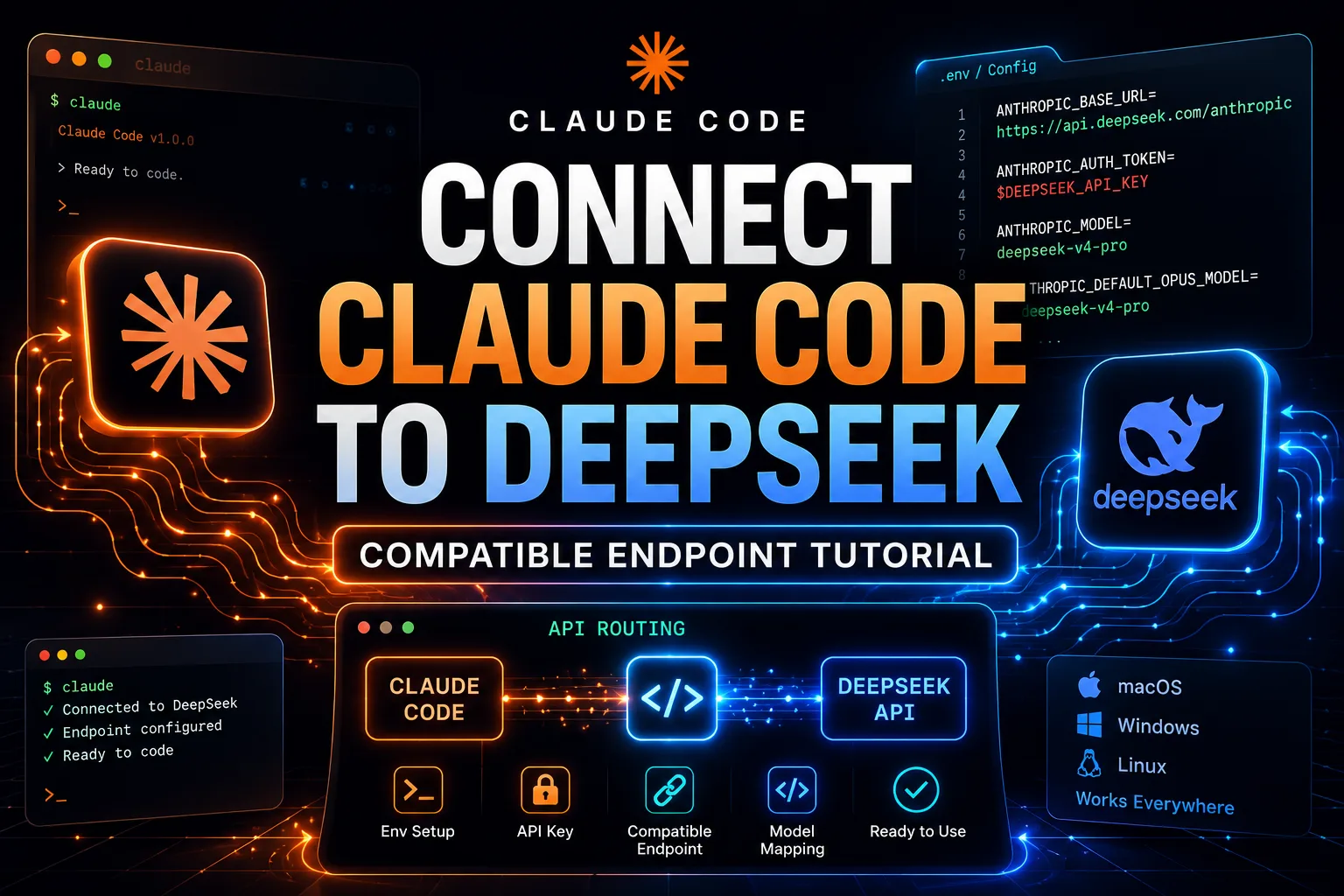
If you are using Claude Code and want to point its backend API calls to DeepSeek's Anthropic-compatible endpoint, this is the setup guide you can follow directly.
The core idea is simple: you do not need to change how you use Claude Code. You only need to change environment variables so the request route, auth token, and default model mapping all point to DeepSeek instead of Anthropic's default path.
This guide is useful for two groups:
Claude Code CLI users
IDE plugin users, such as people using VS Code
If you only use the IDE integration, you can skip the CLI install section and go straight to the environment variable setup.
1. Install Claude Code
CLI users
If Claude Code CLI is not installed yet, run:
npm install -g @anthropic-ai/claude-codeIf you already have it installed, or you mainly use the IDE plugin, you can skip ahead.
2. Configure the DeepSeek-compatible endpoint
This is the real center of the tutorial. The environment variables below are what determine whether Claude Code continues using its default backend path or starts sending requests through DeepSeek's Anthropic-compatible endpoint.
The key variables are:
DEEPSEEK_API_KEY
ANTHROPIC_BASE_URL
ANTHROPIC_AUTH_TOKEN
ANTHROPIC_MODEL
the default model mapping variables used for Opus, Sonnet, Haiku, and subagents
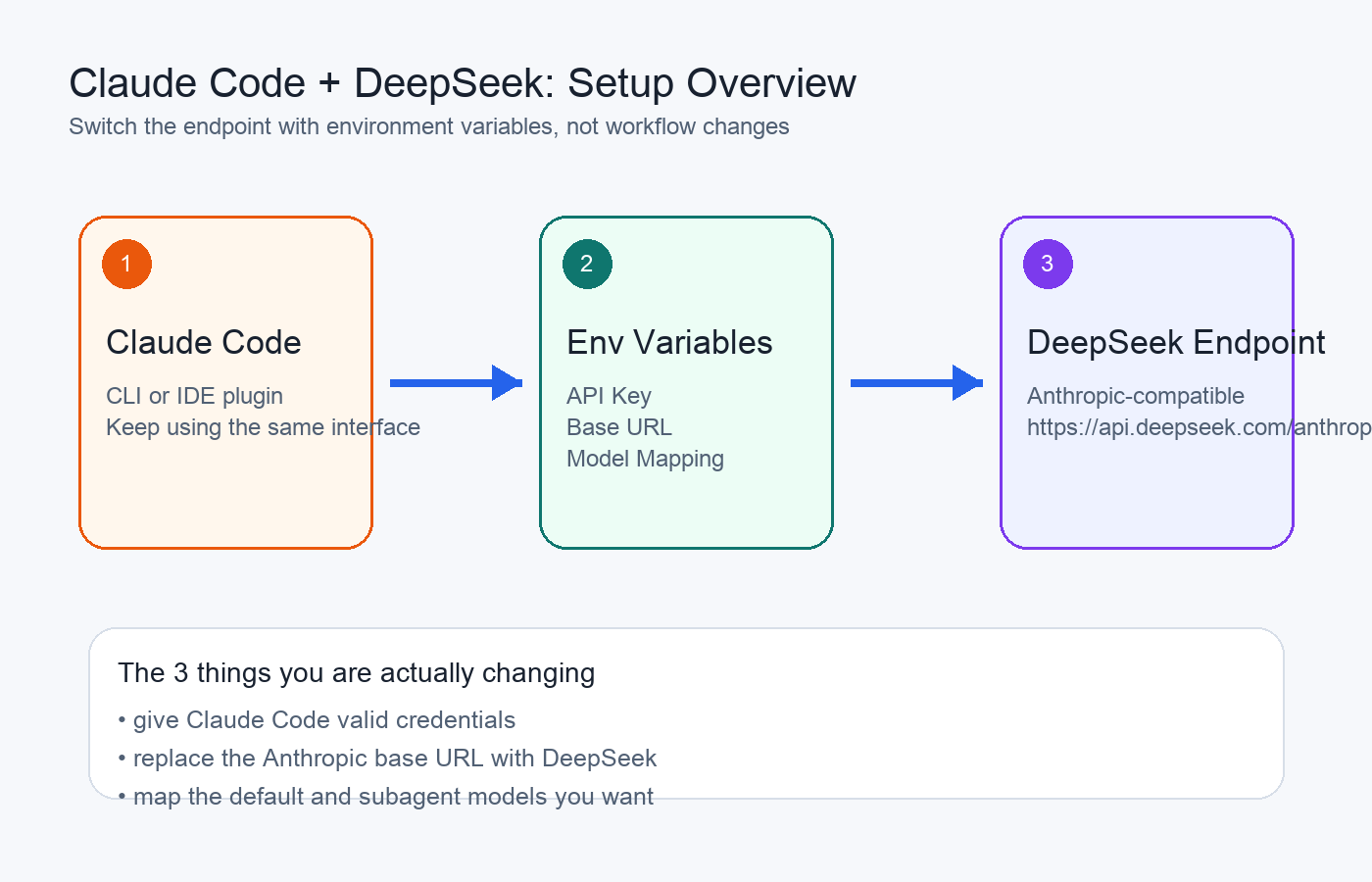
Overview of connecting Claude Code to a DeepSeek-compatible endpoint
2.1 Windows setup
On Windows, open PowerShell as Administrator and run the commands below.
Set the API key
[Environment]::SetEnvironmentVariable("DEEPSEEK_API_KEY", "your-actual-api-key-here", "Machine")Set the API endpoint and auth token
[Environment]::SetEnvironmentVariable("ANTHROPIC_BASE_URL", "https://api.deepseek.com/anthropic", "Machine")[Environment]::SetEnvironmentVariable("ANTHROPIC_AUTH_TOKEN", $env:DEEPSEEK_API_KEY, "Machine")At a practical level, this tells Claude Code to route Anthropic-style requests through DeepSeek's compatible endpoint instead.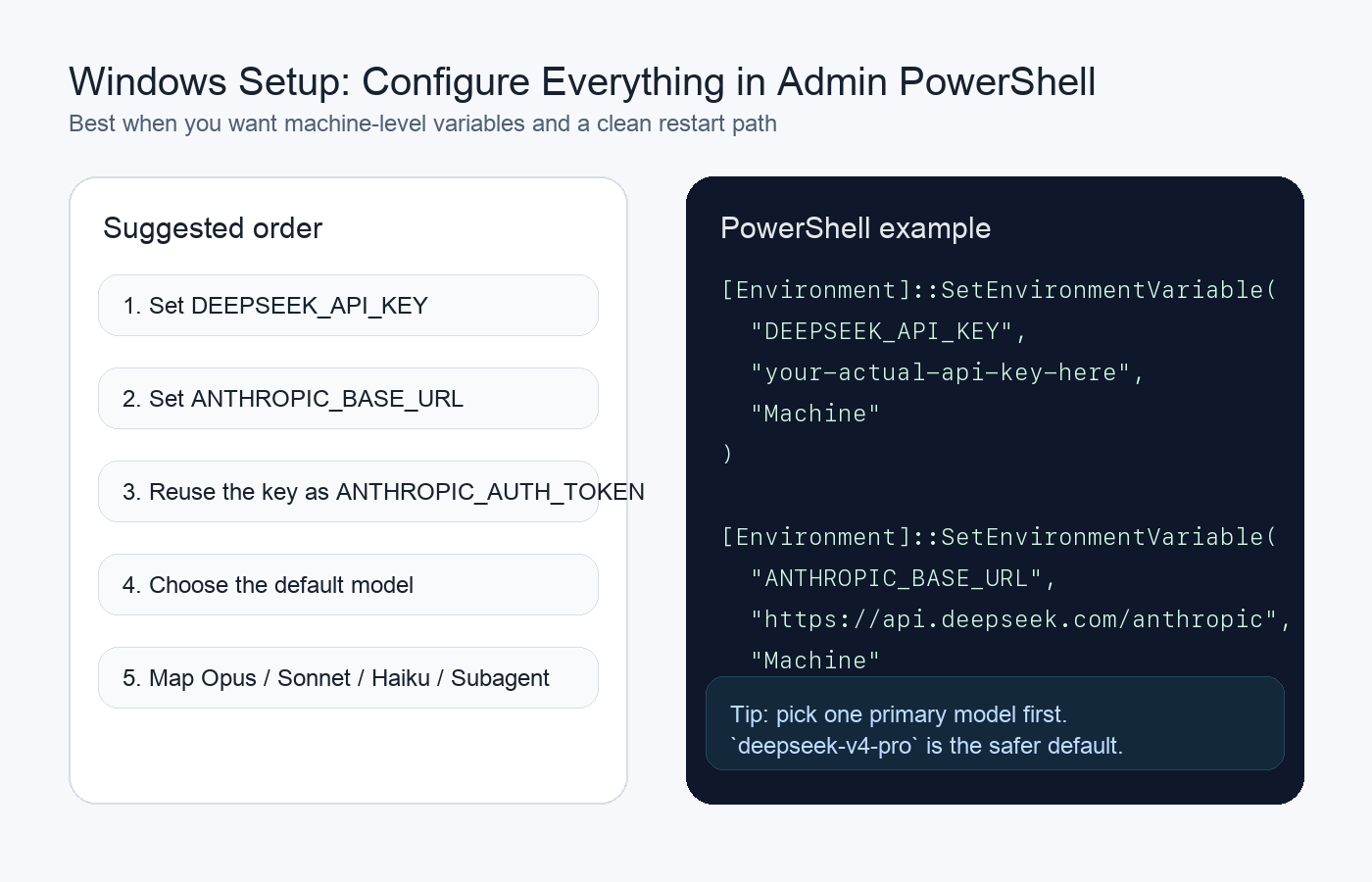
Windows PowerShell setup for the DeepSeek-compatible endpoint
Set the default model
High-performance model:
[Environment]::SetEnvironmentVariable("ANTHROPIC_MODEL", "deepseek-v4-pro", "Machine")Faster model:
[Environment]::SetEnvironmentVariable("ANTHROPIC_MODEL", "deepseek-v4-flash", "Machine")
You only need one of those. Use deepseek-v4-pro if you care more about quality. Use deepseek-v4-flash if you care more about speed and cost.
Set model mapping
[Environment]::SetEnvironmentVariable("ANTHROPIC_DEFAULT_OPUS_MODEL", "deepseek-v4-pro", "Machine")
[Environment]::SetEnvironmentVariable("ANTHROPIC_DEFAULT_SONNET_MODEL", "deepseek-v4-pro", "Machine")
[Environment]::SetEnvironmentVariable("ANTHROPIC_DEFAULT_HAIKU_MODEL", "deepseek-v4-flash", "Machine")
[Environment]::SetEnvironmentVariable("CLAUDE_CODE_SUBAGENT_MODEL", "deepseek-v4-pro", "Machine")
This block is useful because it keeps Claude Code consistent across different model tiers and subagent use cases.
Optional extra settings
[Environment]::SetEnvironmentVariable("CLAUDE_CODE_DISABLE_NONESSENTIAL_TRAFFIC", "1", "Machine")
[Environment]::SetEnvironmentVariable("CLAUDE_CODE_DISABLE_NONSTREAMING_FALLBACK", "1", "Machine")
[Environment]::SetEnvironmentVariable("CLAUDE_CODE_EFFORT_LEVEL", "max", "Machine")
These settings are commonly understood as:
CLAUDE_CODE_DISABLE_NONESSENTIAL_TRAFFIC: disable nonessential traffic
CLAUDE_CODE_DISABLE_NONSTREAMING_FALLBACK: disable non-streaming fallback
CLAUDE_CODE_EFFORT_LEVEL:set a higher reasoning effort level
If you want to start cautiously, you can leave the effort level for later tuning.
2.2 Linux and macOS setup
On Linux and macOS, the more natural pattern is to append the variables to your shell config file.
Common locations include:
~/.bashrc
~/.zshrc
~/.bash_profile
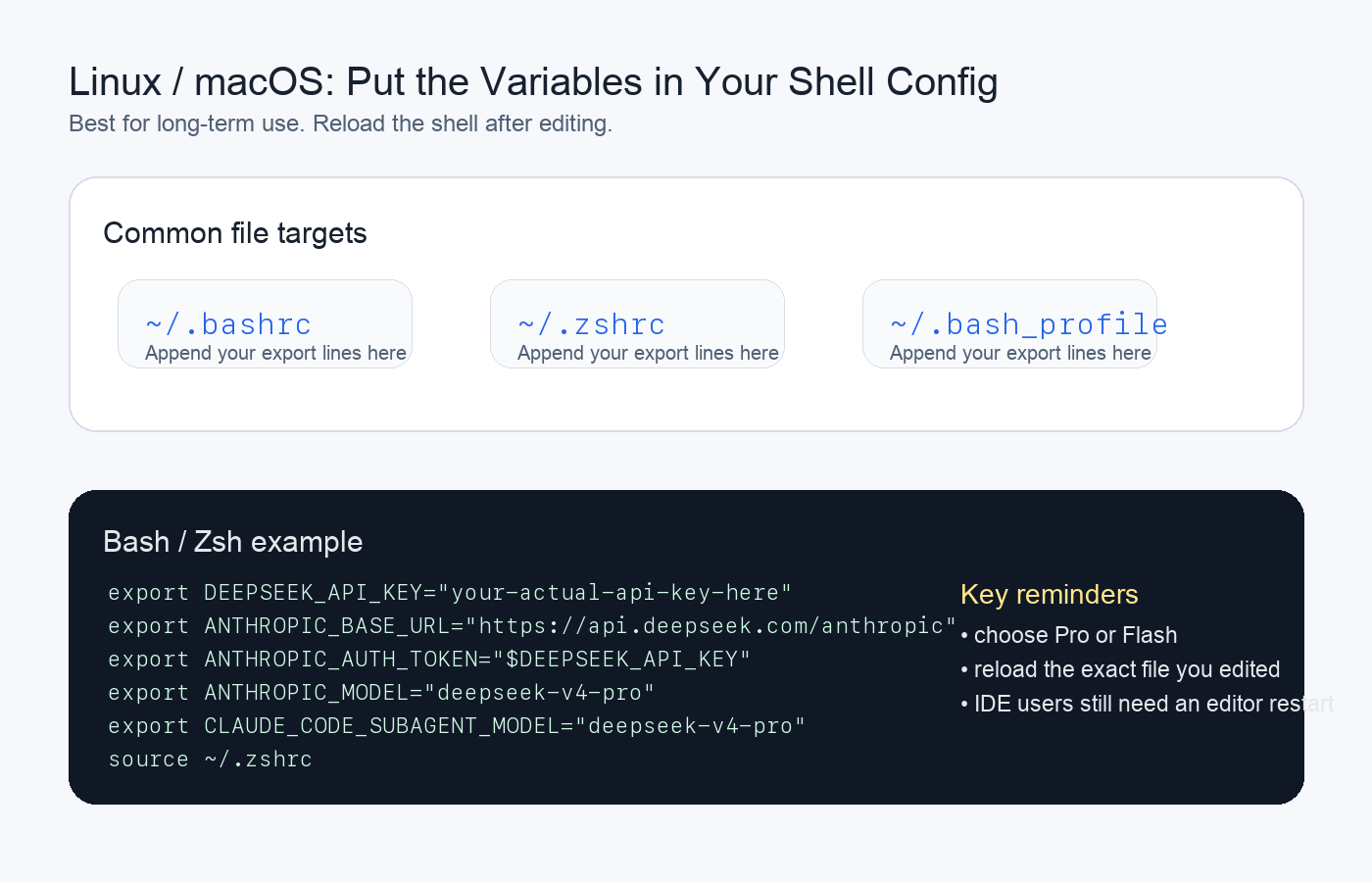
Linux and macOS shell-based configuration for Claude Code and DeepSeek
Set the API key
export DEEPSEEK_API_KEY="your-actual-api-key-here"
Set the API endpoint and auth token
export ANTHROPIC_BASE_URL="https://api.deepseek.com/anthropic"
export ANTHROPIC_AUTH_TOKEN="$DEEPSEEK_API_KEY"
Set the default model
High-performance model:
export ANTHROPIC_MODEL="deepseek-v4-pro"
Faster model:
export ANTHROPIC_MODEL="deepseek-v4-flash"
Again, choose one.
Set model mapping
export ANTHROPIC_DEFAULT_OPUS_MODEL="deepseek-v4-pro"
export ANTHROPIC_DEFAULT_SONNET_MODEL="deepseek-v4-pro"
export ANTHROPIC_DEFAULT_HAIKU_MODEL="deepseek-v4-flash"
export CLAUDE_CODE_SUBAGENT_MODEL="deepseek-v4-pro"
Optional extra settings
export CLAUDE_CODE_DISABLE_NONESSENTIAL_TRAFFIC="1"
export CLAUDE_CODE_DISABLE_NONSTREAMING_FALLBACK="1"
export CLAUDE_CODE_EFFORT_LEVEL="max"
3. Make the configuration take effect
This is where many setups fail. The variables may be correct, but your current shell session still has the old environment loaded.
Run the matching command for the file you edited:
source ~/.bashrc
or:
source ~/.zshrc
or:
source ~/.bash_profile
If you are using an IDE plugin, restart the IDE itself so the host process reloads the updated environment variables.
4. How to verify the setup
CLI users
Open a fresh terminal and run:
claude
If Claude Code starts normally and no longer complains about the default Anthropic-side auth flow, your setup is usually working.
IDE plugin users
For IDE users, the simplest flow is:
restart the editor
open the Claude Code integration
send a normal request
confirm that the request behaves as expected with your configured endpoint and model
If your IDE or plugin exposes logs, it is worth checking them once to confirm the traffic is really going to the DeepSeek-compatible base URL.
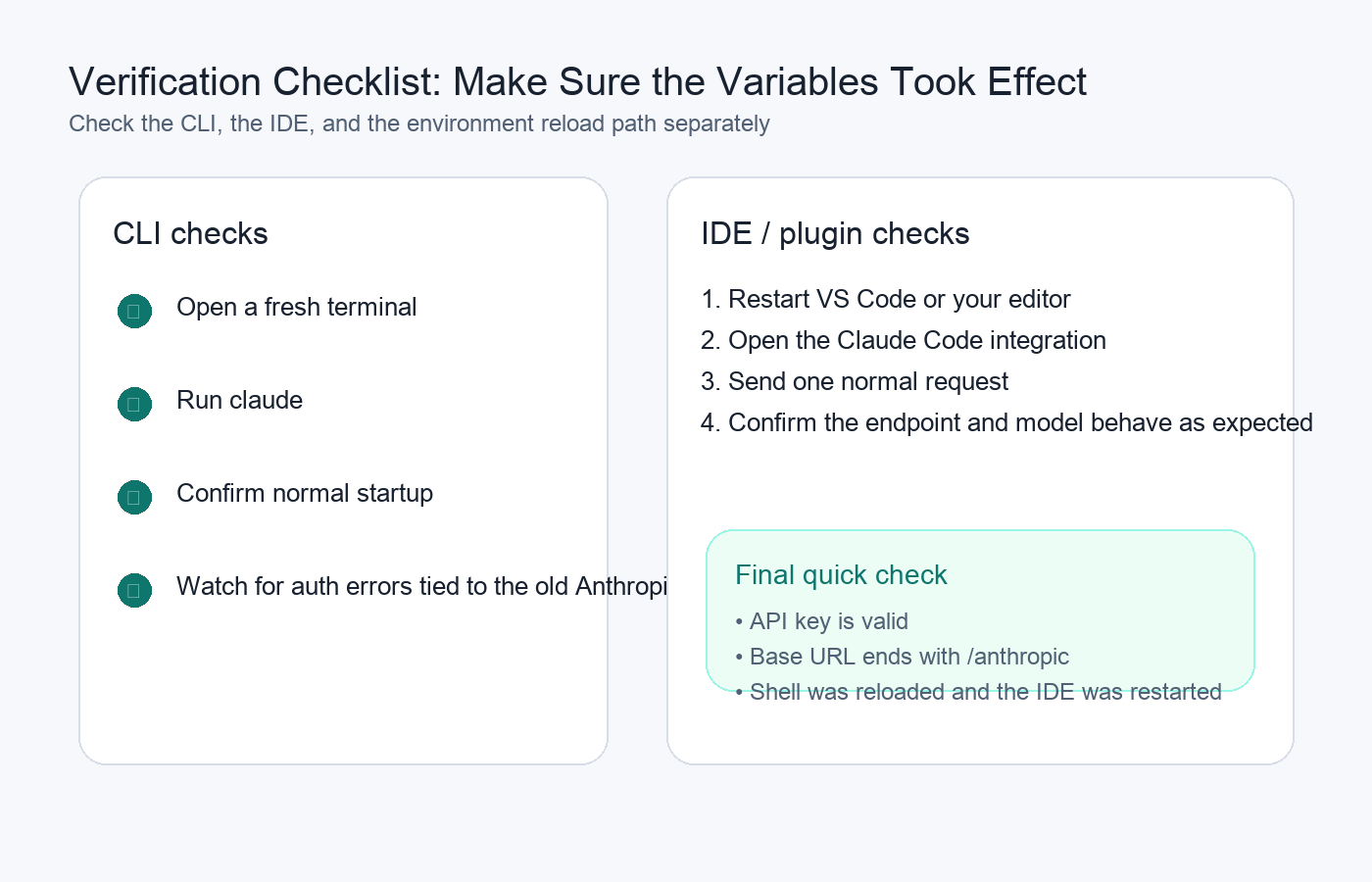
Verification checklist for the Claude Code and DeepSeek setup
5. The practical three-step mental model
At a practical level, this whole configuration can be reduced to three moves:
1. give Claude Code your DeepSeek credentials
2. replace the default Anthropic base URL with DeepSeek's compatible endpoint
3. map the default and subagent models to the DeepSeek variants you want
Once those three pieces line up, Claude Code still feels the same from the outside, but the backend path has changed.
6. Final checklist
Before you call the setup done, quickly verify:
your API key is valid
ANTHROPIC_BASE_URL is exactly https://api.deepseek.com/anthropic
your shell has been reloaded, or your IDE has been restarted
If those three checks pass, Claude Code is usually ready to run against the DeepSeek-compatible endpoint.